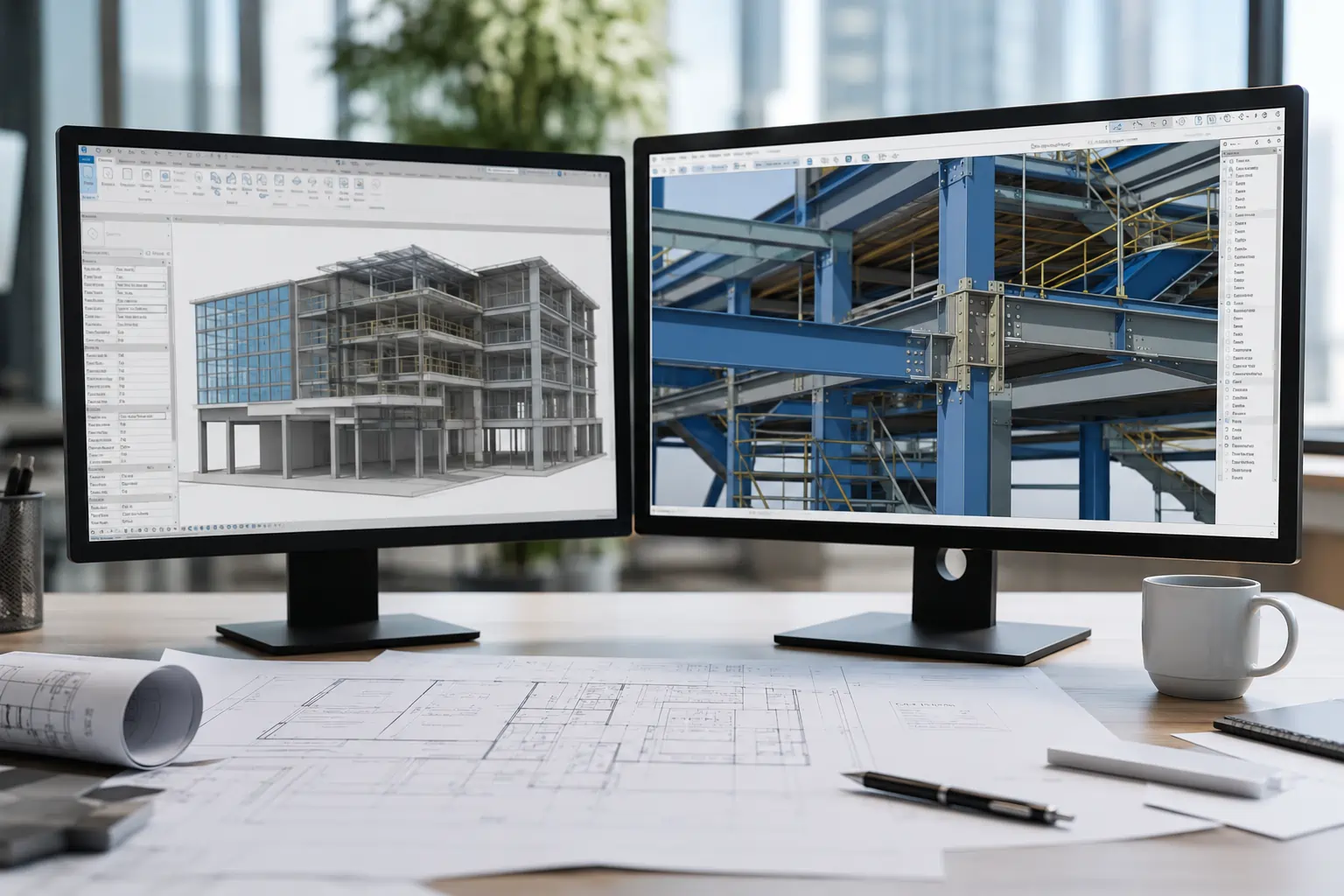
Late one evening before a client review, you open a heavy rendering scene and the system begins to struggle. Navigation stutters, the fans ramp up, and every adjustment takes longer than expected. Moments like this often lead professionals to ask the same question: What is the best laptop for rendering?
If this situation feels familiar, this guide is written for architects and design professionals who rely on rendering every day. We explain how rendering workloads actually use your hardware and which laptop specifications make a real difference, helping you choose a system that matches your workflow and performance needs.
Why You Need a Powerful Laptop for Rendering?
You need a powerful laptop because rendering is one of those tasks that quietly tests every part of your system. When scenes grow complex, the CPU handles geometry, the GPU manages textures, and the cooling tries to keep both alive. Without balance, your laptop ends up fighting itself under pressure.
For professionals, that imbalance shows up right when it hurts most, like in mid-presentation, mid-render, or mid-review.
For example, overnight 3D rendering tasks push CPU cores to their thermal limits for hours without interruption. This is why a machine with an effective cooling system can maintain its clock speeds, which leads to more predictable and consistent render completion times.
What to Look for in a Laptop for Rendering?
The key consideration is how to balance six key components against your budget and projects. Every choice involves trade-offs between performance, portability, and cost considerations. Below, we explore these thresholds through several rendering scenarios and their hardware solutions.
CPU (Processor)
Look for current-generation processors with high core counts and strong sustained performance. A CPU with high sustained clocks performs better than a flashy peak that fades under heat. For Revit, Enscape, or Twinmotion users, that stability means predictable preview times.
We once watched a junior architect’s render time balloon from twenty minutes to over an hour as their sleek laptop throttled under the load. This is a lesson in prioritising thermal performance over thin designs. Plus, multi-core balance also helps when running browsers, notes, or Teams calls during renders.
GPU (Graphic Card)
For current workflows, a GPU with at least 8 GB of VRAM is a baseline. An NVIDIA RTX 4060 meets this requirement. Then, consider an RTX 4070 or higher provides more capacity for more detailed projects. Choose one known to stay consistent through long Twinmotion tours, not just benchmark spikes.
Remember, your GPU is what makes Revit and Twinmotion feel fluid and responsive during client walkthroughs. Here, VRAM is your best friend. A project lead we know solved their persistent viewport lag by upgrading from a 4GB to an 8GB VRAM GPU, because the model itself needed more video memory headroom.
RAM
32 GB RAM is a modern baseline for architecture and rendering. If your scenes carry large assets or linked models, 64 GB provides long-term stability. When your laptop only has 16 GB RAM, running Revit, Enscape, and an image editor at the same time can slow the system down.
Storage
Given the substantial size of modern architectural assets, we suggest at least 1TB of fast NVMe SSD storage. This is because everything will feel invisible: files open instantly, caches build quietly, and nothing interrupts your rhythm. Dual-drive setups are even better when separating projects from the system disk.
Display
A 16-inch WQXGA laptop strikes a balance between display size and portability. So, try to get 100% sRGB coverage and 300+ nits brightness. OLED options (like on the ThinkPad P16 Gen 2) offer stunning contrast but can cause burn-in with static Revit UIs.
Cooling Management
For cooling management, try to look for designs with multiple heat pipes and intelligent fan control algorithms. And avoid ultra-thin “creator” laptops that lack heat pipes. If your fans max out within five minutes of opening Enscape, your hardware is fighting itself.
And that’s where the hardware relationships become more obvious in real use. When your GPU, RAM, and cooling system are out of step, the whole rendering experience suffers because any weak link slows the rest down. In practice, it comes down to a few common trouble points:
- AI rendering algorithms generate sustained loads on both GPU and memory subsystems.
- Large models and textures quickly consume VRAM and system memory headroom.
- Heat build-up forces GPUs to throttle, even if the specs look strong on paper.
- Once VRAM is full, the system starts spilling into slower memory paths, which hurts responsiveness fast.
- If cooling cannot hold steady, performance becomes inconsistent across long neural passes and walkthrough sessions.
How Rendering Workloads Actually Use Your Laptop
| Rendering Type | Main Hardware Used | Typical Use Case | Performance Priority | What Matters Most |
|---|---|---|---|---|
| CPU Rendering | CPU (multi-core processor) | Photorealistic final images, detailed architectural renders | Accuracy and stability | High core count, sustained performance, strong cooling |
| GPU Rendering | GPU + VRAM | Real-time visualization, fast design iteration | Speed and responsiveness | Powerful GPU, large VRAM capacity |
| Hybrid Rendering | CPU + GPU together | Modern rendering workflows and ray tracing engines | Balanced performance | Strong CPU and GPU combination |
| Real-Time Rendering | Mostly GPU | Walkthroughs, live previews, client presentations | Instant feedback | GPU performance and thermal stability |
| Offline Rendering | CPU + GPU (long duration) | Final production renders and exports | Sustained workload | Cooling system and power stability |
| Animation Rendering | CPU + GPU continuously | Video walkthroughs and animations | Long-term reliability | Thermal management and RAM capacity |
Best Laptops for Rendering in 2026
The following best laptop for rendering below balance world usability with strong performance for AEC work. They represent different styles of workflow, from portable site tools to desktop-grade mobile stations. Treat this list as a map, not a contest. So you can match the laptop’s character to your project rhythm, and it will serve you longer than its release date.
Lenovo ThinkPad X1 Extreme Gen 6
The X1 Extreme Gen 6 delivers workstation power in a travel-ready form. The RTX 4060 GPU and Core i9 CPU make this laptop handle 3D modeling, Twinmotion, Revit, and rendering smoothly. Of course, this makes the laptop great for live design reviews and on-site changes.
For Australian AEC teams, Lenovo’s nationwide service and durable carbon-fibre build make it a practical mobile workstation. Sleek enough for client meetings yet tough for field work. Yup, this is the balanced choice for architects and visualisers who design, present, and render on the move.
Core Specs of Lenovo ThinkPad X1 Extreme Gen 6
- Up to Intel Core i9 (13th Gen)
- NVIDIA RTX 4060 (8 GB GDDR6)
- Up to 64 GB DDR5
- Up to 2 TB PCIe Gen 4 SSD
- 16-inch 4K OLED 100% DCI-P3
- Dual-fan vapour chamber cooling system
- 1.9 kg
Dell Pro Max 18 Plus (2025)
The Dell Pro Max 18 Plus (2025) is built as a large-format mobile workstation for teams running sustained rendering and AI-heavy design workloads. For AEC workflows, this is the kind of chassis that prioritises throughput over ultra-thin compromises.
What stands out is how Dell frames this machine around modern AI-supported work, including Copilot-ready productivity and workstation-grade headroom for intensive visual tasks. In practice, that matters when you are juggling heavy Revit coordination, Twinmotion walkthroughs, and long export cycles where cooling and GPU stability decide whether performance holds up past the first few minutes.
For Australian studios standardising laptops across project teams, the Pro Max 18 Plus also leans into durability, serviceability, and connectivity.
Core Specs of Dell Pro Max 18 Plus (2025)
- Up to Intel Core Ultra 9 (HX-class)
- Up to NVIDIA RTX PRO 5000 (Blackwell) 24GB GDDR6
- Up to 128 GB DDR5 / CAMM2 memory
- Up to 4 TB PCIe Gen 4 SSD
- 18-inch QHD+ display (large-format workstation panel)
- Advanced thermal design with multi-fan cooling
- 3.0 kg
Apple MacBook Pro 16 (M4 Pro, 2024)
The M4 MacBook Pro 16 handles rendering tasks with efficiency and low power draw. It smoothly runs SketchUp, Twinmotion, and Blender, even when juggling large architectural models. Of course, MacBook Pro battery endurance keeps mobile reviewers productive through long days.
However, double-check your plugin compatibility before jumping in fully. Some Autodesk and rendering ecosystems still prefer Windows. For those already using macOS tools, it’s a quiet, polished partner in any meeting room.
Core Specs of Apple MacBook Pro 16 (M4 Pro, 2024)
- Apple M4 Pro (14-core CPU, 20-core GPU)
- Up to 24 GB unified memory
- Storage: Up to 2 TB SSD
- 16.2-inch Liquid Retina XDR, P3 wide colour
- Passive + active thermal system
- 2.1 kg
ASUS ROG Strix SCAR 16 (2024) G634
Built for raw rendering power, the ASUS ROG Strix SCAR 16 G634 pushes laptop rendering into desktop territory. The CPU and GPU in this laptop easily tackles large Revit models, Enscape walkthroughs, and cinematic VFX scenes. Its display delivers deep contrast, smooth motion, and complete DCI-P3 accuracy, which is ideal for colour-sensitive design and animation.
The SCAR 16 is the best laptop for Australian AEC specialists who work with simulation, visualisation, or high-fidelity 3D rendering. It powers real-time coordination meetings, complex BIM environments, and photorealistic tender presentations without lag. Whether rendering large infrastructure models or visualising design concepts on-site, this machine is ready for any situation.
Core Specs of ASUS ROG Strix SCAR 16 (2024) G634
- Intel Core i9-14900HX
- NVIDIA RTX 4090 (16 GB GDDR6)
- Up to 64 GB DDR5
- Up to 2 TB PCIe Gen 4 SSD
- 16-inch QHD+ Nebula HDR (240 Hz, 100% DCI-P3)
- Tri-fan system with liquid metal
- 2.5 kg
Lenovo ThinkPad P16 Gen 2
The ThinkPad P14s Gen 6 (14″ Intel) is a practical mobile workstation for teams that need rendering-capable performance without carrying a 3 kg chassis to every meeting. The build is aimed at professional workloads with Intel Core Ultra options, workstation-grade graphics configurations, and the kind of port mix that suits real project work.
For Australian AEC and engineering teams moving between office, site, and client rooms, this is the type of laptop that stays deployable while still having enough headroom for real-time review and short render runs.
In our experience as laptop leasing providers, this category is the sweet spot, where standardised fleets stay manageable, because you can issue them widely across 15–100 staff without the weight and thermals becoming a daily complaint.
Core Specs of Lenovo ThinkPad P14s Gen 6 (14″ Intel)
- Up to Intel Core Ultra 9
- Integrated Intel® AI Boost, up to 13 TOPS
- NVIDIA® RTX PRO 500 Blackwell Generation 6GB GDDR7 Laptop GPU
- Up to 64 GB DDR5
- Up to 2 TB PCIe SSD
- From 14-inch display
- Business-grade cooling and thermal management
- 1.3–1.5 kg class
How AI Rendering Is Changing Laptop Requirements
AI integration in rendering engines changes how a laptop’s subsystems are stressed because Inference tasks often create short, intense bursts of activity. At the same time, training or extended rendering sessions impose sustained heavy loads on cooling and power systems.
The laptop must feed dedicated tensor cores on the GPU with data from system memory almost instantaneously, then manage the spike in heat. This demands a more holistic view of the machine’s architecture, not just peak specs on a datasheet.
For Australian studios, this shift makes future-proofing a clearer, if more complex, calculation. A Sydney-based architecture firm we advised found their previous-generation laptops, while powerful for traditional rendering, consistently faltered during AI-accelerated previews.
The bottleneck wasn’t the GPU’s raw power, but the system’s inability to keep the GPU and RAM in sync under the new workload pattern. That kind of situation is why a dedicated provider of IT solutions for architecture projects can be a partner in navigating the spec list, needs, and goals.
The takeaway is to evaluate the whole pipeline. Prioritise a GPU with robust AI cores (such as NVIDIA’s RTX Ada series), pair it with ample, high-speed RAM to serve as a ready data reservoir, and insist on a cooling system rated for sustained combined loads.
How to Future-Proof Your Rendering Laptop
Rendering software and project complexity continue to evolve, which means laptop requirements increase over time. Choosing hardware with future workloads in mind helps extend usability and prevents early performance limitations.
Prioritize GPU VRAM
- Modern rendering increasingly depends on GPU acceleration and real-time ray tracing
- VRAM often becomes the first bottleneck in large architectural or visualization projects
- Aim for at least 12GB–16GB VRAM for long-term usability
- Higher VRAM improves stability when working with large scenes and high-resolution textures
Choose Upgradeable and Sufficient RAM
- Rendering and BIM projects grow heavier as models become more detailed
- Start with 32GB RAM if possible
- Prefer laptops with upgradeable memory slots
- Advanced workflows and animation projects may require 64GB RAM in the future
Invest in Fast and Expandable Storage
- Rendering workflows generate large files, caches, and asset libraries
- Choose a minimum 1TB NVMe SSD
- PCIe Gen4 (or newer) storage improves loading and caching performance
- Additional storage slots or external expansion options help long-term scalability
Focus on Cooling and Sustained Performance
- Rendering workloads run continuously for long periods, not short bursts
- Thin laptops may throttle under sustained heat
- Look for strong thermal design and workstation-class cooling systems
- Stable performance over time matters more than peak benchmark speeds
Prepare for AI-Assisted Rendering
- AI denoising, upscaling, and optimization are becoming standard in rendering tools
- Modern GPUs include dedicated AI acceleration cores
- AI features reduce render time but increase GPU dependency
- Choosing newer GPU architectures improves compatibility with future software updates
Plan for a 3–5 Year Workflow Horizon
- Projects typically become more complex over time
- Real-time visualization and animation workflows are growing industry standards
- Balanced CPU, GPU, RAM, and cooling extend laptop lifespan
- A slightly higher upfront investment often delays replacement and lowers long-term cost
Desktop vs Laptop for Rendering
Choosing between a desktop and a laptop for rendering depends less on raw specifications and more on how and where you work. Both options can deliver strong performance, but they serve different workflow needs.
When a Laptop Is the Better Choice
A rendering laptop is ideal for professionals who need mobility without sacrificing performance.
Choose a laptop if you:
- Work between office, home, and project sites
- Frequently present designs to clients or teams
- Need a single device for modeling, rendering, and meetings
- Collaborate remotely or travel regularly
- Require flexibility for hybrid or remote workflows
When a Desktop Is the Better Choice
Desktops remain the strongest option for maximum rendering performance and long-term scalability.
Choose a desktop if you:
- Produce animations or large rendering batches regularly
- Run long overnight renders or continuous workloads
- Need the highest performance per budget
- Plan to upgrade components over time
- Work primarily from a fixed studio environment
Tips for Buying a Laptop for Rendering
Start by identifying where your current system slows down. If your viewport stutters in Enscape or Twinmotion, focus on a more capable GPU. If renders take hours to complete, a CPU with higher core counts will deliver better overall value.
Let’s be practical; check how your preferred 3D rendering software interacts with hardware. Applications like Revit, Lumion, and V-Ray have different system demands. Because some rely more on GPU power, while others benefit from CPU processing or large memory capacity.
With this knowledge, you can approach your budget more strategically. This is why consider the upfront cost of the machine and how the purchase fits into your studio’s financial planning. For many Australian studios, managing this expense effectively is a key consideration.
Therefore, Interscale offers dedicated IT equipment leasing as a practical alternative to outright purchasing. Our approach converts a large upfront investment into a predictable monthly operational cost. The goal is to help you easier to acquire the right tools without straining your budget.
Boost Your Rendering Power with Laptop Leasing
Access high-performance laptops built for 3D modelling and rendering—no upfront cost, flexible monthly payments.
Takeaways
Choosing the best laptop for rendering in 2026 is about rhythm, which is beyond specs. All to make your hardware support your pace. If your focus is on real-time presentation, prioritise GPUs and colour accuracy. For heavier overnight renders, invest in CPU headroom and strong cooling.
FAQ
Can a Laptop Handle Rendering?
Which is the Best Laptop for Rendering?
Is the RTX 4060 Laptop Good for 3D Rendering?
Is RAM or GPU More Important for Rendering?
Editorial note: This article has been updated with insights on how AI rendering affects laptop requirements and refreshed hardware profiles for 2025-2026 to keep the guide relevant to current Australian AEC practices and workflow trends.