


Your architect and team scroll a dense façade model before a client review. The viewport hesitates, the room grows quiet, and the clock keeps moving. As precious time slips away, they wonder which laptop for 3d modeling will make tomorrow’s projects feel calmer.
You may know this feeling when orbiting a complex SketchUp scene. Every pan stutters, the fans surge, and the meeting timer feels louder than usual. So the question shifts from brand names to the parts that actually remove friction.
This guide speaks to that moment with simple, practical steps. We connect scene complexity to CPU threads, and textures to GPU VRAM. Then we show how upgrades and financing keep choices flexible over time.
Minimum and Recommended Specs for 3D Modeling
The minimum specs for 3D modelling mean starting with a modern 8-core CPU, RTX 4050 graphics, 16 GB RAM, and 1 TB SSD storage, while the recommended specs should be a stronger H/HX-series CPU, RTX 4070-class graphics with 8 GB VRAM, 32 GB RAM, and cooling that can hold performance.
The main idea of those specs is to cover lighter modelling work, while the recommended specs should support heavier models, rendering, and BIM coordination without constant slowdowns. Let’s break down the minimum and recommended specs of laptop for 3D modelling in table below
| Component | Minimum | Recommended |
| CPU | Modern 8-core mobile processor, such as Ryzen 7, Intel Core i7 H-series, or equivalent | High-performance H/HX-series CPU with strong single-core speed and 12–20 threads for Revit, SketchUp, Rhino, Blender, and rendering workloads |
| GPU | NVIDIA RTX 4050 or RTX 4060 laptop GPU with at least 6 GB VRAM | NVIDIA RTX 4070-class laptop GPU with 8 GB VRAM as the practical 2025/2026 sweet spot, with 12–16 GB VRAM available when stepping up to RTX 4080, RTX 4090, or selected RTX 50-series options |
| RAM | 16 GB dual-channel RAM for lighter models, learning use, and basic SketchUp or Rhino workflows | 32 GB RAM as the professional starting point, with 64 GB preferred for larger Revit models, Blender scenes, multitasking, and BIM coordination |
| Storage | 1 TB PCIe NVMe SSD | 1 TB PCIe 4.0 NVMe SSD plus a second M.2 slot for project files, render assets, cache, and scratch storage |
| Display | 15.6–16″ display, 16:10 ratio, 100% sRGB where possible | 16″ 16:10 display, 300 nits or higher, with 100% sRGB or DCI-P3 coverage for presentation and colour-sensitive work |
| Cooling | Dual-fan cooling with a dedicated performance mode | Larger thermal system with sustained CPU/GPU boost under load, especially for long renders, model reviews, and client presentations |
| Power Supply & Battery | 180 W adapter and 70 Wh battery class | 230 W or higher adapter and 90 Wh battery class, with USB-C Power Delivery for light office use where available |
| Connectivity & Ports | USB-C, 2 × USB-A, HDMI 2.1, Wi-Fi 6 | 2 × USB-C, DisplayPort support, HDMI 2.1, RJ-45 LAN where available, Wi-Fi 6E or Wi-Fi 7, and Bluetooth 5.3 or newer |
2026 considerations: Autodesk’s Revit 2026 system requirements list 32 GB RAM or higher as usually sufficient for a typical editing session on a single model up to roughly 600 MB. Blender’s current requirements also place 32 GB RAM and 8 GB VRAM in its recommended tier.
Choose by Software: Revit, SketchUp, Blender, Rhino
The best laptop for 3D modelling depends on whether the main software, Rhino, Revit, Blender, or SketchUp, leans on CPU speed, GPU power, memory capacity, or a balanced mix of all three. Let’s see how software capabilities affect 3D modelling laptops in the table below.
| Software | Hardware bias | What to prioritise | Considerations |
| Revit | Mostly CPU-bound, with growing GPU and RAM pressure | Fast H/HX-series CPU, 32 GB RAM minimum, RTX 4070-class GPU for comfort | Revit can become harder on memory once linked files, sheets, views, and BIM coordination workflows sit inside the same project environment. |
| SketchUp | Balanced, but viewport comfort depends heavily on GPU stability | Strong single-core CPU, discrete GPU, 16–32 GB RAM | SketchUp feels light until scenes include large textures, imported assets, shadows, and client-ready presentation views. |
| Blender | GPU-bound for rendering, balanced for modelling | RTX 4070-class or better, 32 GB RAM, strong cooling | Blender’s recommended tier lists 32 GB RAM and 8 GB VRAM, so GPU headroom matters once Cycles rendering, simulation, and larger assets enter the workflow. |
| Rhino | Balanced, often lighter than Revit or Blender | Fast CPU, 16–32 GB RAM, stable OpenGL-capable graphics | Rhino usually stays lighter than Revit, but larger models and rendering plug-ins still benefit from extra RAM and stable graphics performance. |
The table sets the baseline, but daily software use changes how those laptop specs behave in practice.
For example, a 25-person architecture studio in Brisbane may feel fine with SketchUp on RTX 4060 laptops until real-time rendering, larger texture libraries, and client presentation files start running together.
The same logic matters even more in Revit-heavy teams. If one person handles Revit clash detection, model checks, and issue markups during coordination meetings, their laptop needs enough RAM and GPU headroom to keep the process of BIM clash detection moving.
For a closer Revit-specific view, our guide to the best laptop for Revit explains where Revit hardware requirements start to separate from general 3D modelling needs.
For concept modelling and quick visualisation, our guide to choosing the best laptop for SketchUp can help you compare software needs against practical laptop specs.
Tips for Buying a Laptop for 3D Modelling
The best way to buy a laptop for 3D modelling is to match the device to the user’s role, the software stack, and the expected refresh cycle. That matters because the same laptop can feel very different across a team.
Focus on a Budget Laptop for 3D Modeling
A budget laptop for 3D modeling should not mean the cheapest machine that can open the software. It should mean the lowest sensible tier that can survive the user’s actual workload for the next few years.
That usually starts with RTX 4050 or RTX 4060 for lighter modelling and review work. But once the role includes regular rendering, client presentations, linked Revit files, or BIM coordination, the budget decision should move toward RTX 4070-class graphics and 32 GB RAM.
Pro tip: In Australia AEC industry, a cheap laptop is only cheaper if it does not create waiting time, support issues, or an early replacement cycle.
Match the Laptop Tier to the User’s Role
The right laptop tier depends on what the person actually does each day, for example:
For lighter modelling, markups, and review work, an RTX 4050 or RTX 4060 laptop with 16–32 GB RAM can still be sensible.
For users who model, render, present, and coordinate regularly, RTX 4070-class graphics with 8 GB VRAM and 32 GB RAM is a safer 2025/2026 baseline.
For this consideration, the table below shows how common AEC user roles map to laptop specs:
| User role | Practical laptop tier | Why it matters |
| Model reviewer or markup user | RTX 4050/4060, 16–32 GB RAM | Enough for lighter files, review sessions, and general project work |
| Daily Revit or SketchUp modeller | RTX 4070-class, 32 GB RAM | Better fit for larger files, live navigation, and project multitasking |
| BIM coordinator | RTX 4070-class or higher, 32–64 GB RAM | More headroom for linked models, BIM clash analysis, and coordination reviews |
| Visualisation or rendering user | RTX 4080, RTX 4090, or selected RTX 50-series options | Better fit for Blender, GPU rendering, large textures, and client-facing visuals |
For your reference, Interscale guide to the best laptop for architecture can help map laptop specs to design, documentation, coordination, and presentation roles.
Buy a Laptop That Can Be Upgraded
Upgradeability matters most when project demands are likely to grow during the laptop’s service life.
For example, two accessible memory slots and a spare M.2 SSD slot give the business more room to respond later. That can be useful when Revit models get larger, Blender scenes become more detailed, or asset libraries start taking over local storage.
For procurement, the question is simple: can the laptop grow with the user, or does it need to be replaced when the workload changes?
A sealed 32 GB laptop may be fine for a mobile design lead, while an upgradeable 64–96 GB-capable machine may suit a BIM coordinator better.
For upgradable models that balance power and practicality, we would prioritise the Lenovo Legion Pro 7i Gen 10 and MSI Stealth 16 AI Studio.
Focus on Specs, Not Brand
Your daily workflow is affected by component performance, not the brand logo.
A strong CPU and GPU can still disappoint if the chassis throttles during long renders, model reviews, or coordination sessions. NVIDIA’s laptop GPU specifications also show wide power ranges across mobile RTX chips, so two laptops with the same GPU name can perform differently depending on wattage and cooling design.
This is where many spec sheets need a second look. For 3D modelling, check GPU wattage, cooling layout, RAM capacity, SSD expandability, warranty terms, and the ports needed for monitors, docks, and office setups.
For another reference, our guide to the best laptop for rendering gives a focused view of mixing the GPU, VRAM, cooling, and display choices.
Avoid Buying One Laptop Tier for Everyone
A single standard laptop can simplify ordering, but it can also create waste when the team’s workloads are uneven.
In a 50-person design or engineering office, one group may only need reliable modelling and review performance. Another group may need stronger machines for rendering, clash detection in BIM, and coordination across linked Revit files.
Keep lighter laptops for review and general modelling, assign RTX 4070-class machines to daily production users, and reserve RTX 4080 or RTX 50-series machines for heavier rendering and coordination roles.
Treat Budget as a Lifecycle Decision
The budget for a 3D modelling laptop should be judged by how long the device stays useful for the role, not just by the upfront purchase price.
A cheaper laptop can make sense when the role is light and stable. But if the user’s workload is moving toward larger models, more rendering, or more BIM coordination, you should choose a better 3D modelling laptop.
For Australian teams with 15–100 staff, the better question is often: In a complex Australian AEC business, how long should the 3D modelling laptop stay useful for this role?
Once that is clear, the buying decision becomes easier to connect with warranty, refresh timing, leasing, and role-based deployment.
How Interscale Helps You Buy a Laptop Without the Initial Cost?
Interscale’s IT equipment leasing spreads the hardware cost into predictable monthly payments. This lets your team secure the workstation it needs now without freezing valuable capital. And each plan is structured as an operating expense to keep your balance sheet lighter and your tax planning efficient.
When your workflow expands, you can also bundle 3D modeling software into the same financing plan. That means Revit, Rhino, or rendering licences can grow alongside your hardware. And all without disrupting cash flow.
You can choose 24- or 36-month plans that match project lifecycles. If your modelling workloads increase, you can even swap to upgraded devices mid-term. Our team handles warranty, support, and logistics so you can focus on your designs, not your devices.
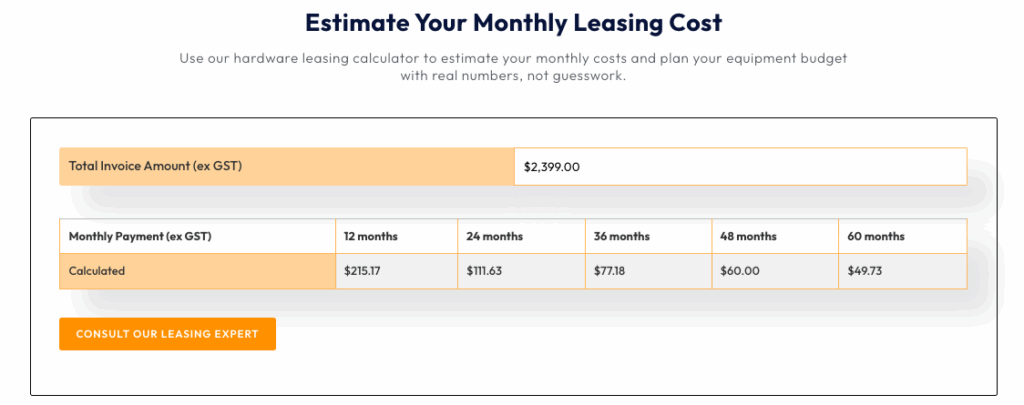
Now, let’s see what this looks like in practice using the Interscale financing calculator. Suppose you choose an ASUS TUF Gaming F16 (2025), starting at A$2,399 incl. GST. Over a 36-month lease, your estimated payment would sit around A$72–78 per month ex. GST, depending on residual value and interest rate.
Pro Tip: At the end of the term, you can return, renew, or own the device, whichever best fits your team’s next phase.
Buy a Laptop for 3D Modelling — We’ll Help You Finance It
Get powerful performance for design and rendering with flexible payment options and no upfront cost.
Best Laptops for 3D Modelling That Can Be Purchased with Financing Solutions
Lenovo Legion Pro 7i Gen 10
Built as a gaming laptop, the Lenovo Legion Pro 7i Gen 10 is the high-end option for users who need sustained performance across modelling, rendering, and heavier BIM coordination.
For a 45-person architecture or engineering consultancy, Lenovo Legion Pro 7i Gen 10 makes more sense for senior designers, BIM coordinators, and visualisation leads. The cost is easier to justify when the same device handles modelling, rendering, and client-facing presentation files.
Lenovo’s Australian product information lists the Legion Pro 7i Gen 10 with Intel Core Ultra processors and NVIDIA RTX 50-series GPU options.
That places it above the older RTX 4070/4080 recommendation tier, so it suits users who need sustained power for model reviews, rendering, and coordination-heavy project work rather than simple drafting.
ASUS ProArt P16 2025
The ASUS ProArt P16 2025 is the creator-focused option for teams where 3D modelling overlaps with rendering, visual presentation, and colour-sensitive work.
ASUS announced a high-end ProArt P16 upgrade with AMD Ryzen AI 9 HX 370, NVIDIA RTX 5090 Laptop GPU, 64 GB RAM, and a 4K OLED display, with international launch timing in late 2025
With those high specs, the ASUS ProArt P16 is a best fit for teams using SketchUp, Blender, Rhino, Adobe tools, and rendering software alongside their modelling stack.
A small-to-mid-sized design studio in Sydney may not need ASUS ProArt P16 as a default workstation for everyone.
But for the person preparing walkthroughs, rendered stills, client decks, and visual options, the ProArt P16 sits in a useful middle ground between a creator laptop and a mobile workstation.
Lenovo Legion Pro 5 Gen 10
The Lenovo Legion Pro 5 Gen 10 is the controlled middle-tier option when the team wants current-generation performance without jumping straight to the highest-cost GPU tier.
For many teams, Legion Pro 5 Gen 10 is the best option as dependable laptops for AutoCAD, Revit, SketchUp, BIM coordination, and moderate rendering without overbuying for every seat.
For example, a Perth design-and-construct team with 40 staff may keep one higher-end rendering machine for visualisation and use Legion Pro 5-style configurations for staff who mainly model, review, and coordinate.
Razer Blade 16
The Razer Blade 16 works best when a mobile design lead needs strong 3D performance in a polished 16-inch machine.
The Razer Blade 16 value comes from the thin chassis, high-end RTX options, strong display choices, and premium build. That mix suits users who move between office modelling, client meetings, and visual presentation.
For procurement, the trade-off is simple. The Razer Blade 16 can make sense when portability and presentation value sit beside performance. But it becomes harder to justify when the priority is RAM headroom, serviceability, and cost control across several users.
A 40-person studio may buy one for a mobile visualisation lead, while choosing more configurable machines for staff who spend most of the day in Revit, Blender, or BIM coordination.
MSI Stealth 16 AI Studio
The MSI Stealth 16 AI Studio is a stronger fit when the team wants portable performance with more memory headroom than many thin premium laptops.
The Stealth 16 AI Studio configurations up to NVIDIA GeForce RTX 4090 Laptop GPU with 16 GB GDDR6 VRAM. MSI also lists two DDR5 memory slots with support up to 96 GB, which makes it more flexible for larger Revit files, Blender scenes, rendering work, and heavier BIM coordination loads.
That difference matters commercially. A 30-person architecture or design studio may choose the Razer Blade 16 for mobile presentation users, while assigning the Stealth 16 AI Studio to users who need more RAM headroom for modelling, rendering, and coordination across several projects.
Where MacBook Pro M4 Fits in a 3D Modelling Laptop Shortlist?
MacBook Pro M4 fits best as a macOS option for SketchUp, Blender, Rhino, and presentation-led 3D modelling, not as the default choice for Revit-heavy teams. The hardware can be capable, but the workflow needs to match macOS.
Let’s say, a Sydney interiors team using SketchUp, Rhino, Adobe tools, and Blender previews may be comfortable on MacBook Pro M4. But a Revit-led documentation team will usually stay safer on Windows laptops because of software compatibility, add-ins, and BIM coordination handovers.
As a reminder, Interscale’s hardware leasing service helps your team discuss the right laptop tier and the right financing structure together.
We can help you decide who needs a higher-spec machine. We can also help identify who can stay on a practical modelling tier. From there, the payment term can be matched to how long the laptop should stay useful.
Takeaways
Focus on a sustained performance laptop to keep your 3D modelling and rendering workflows running smoothly. If upfront capital is a constraint, explore financing options like leasing. Interscale can guide you through IT equipment leasing tailored to Australian businesses.


