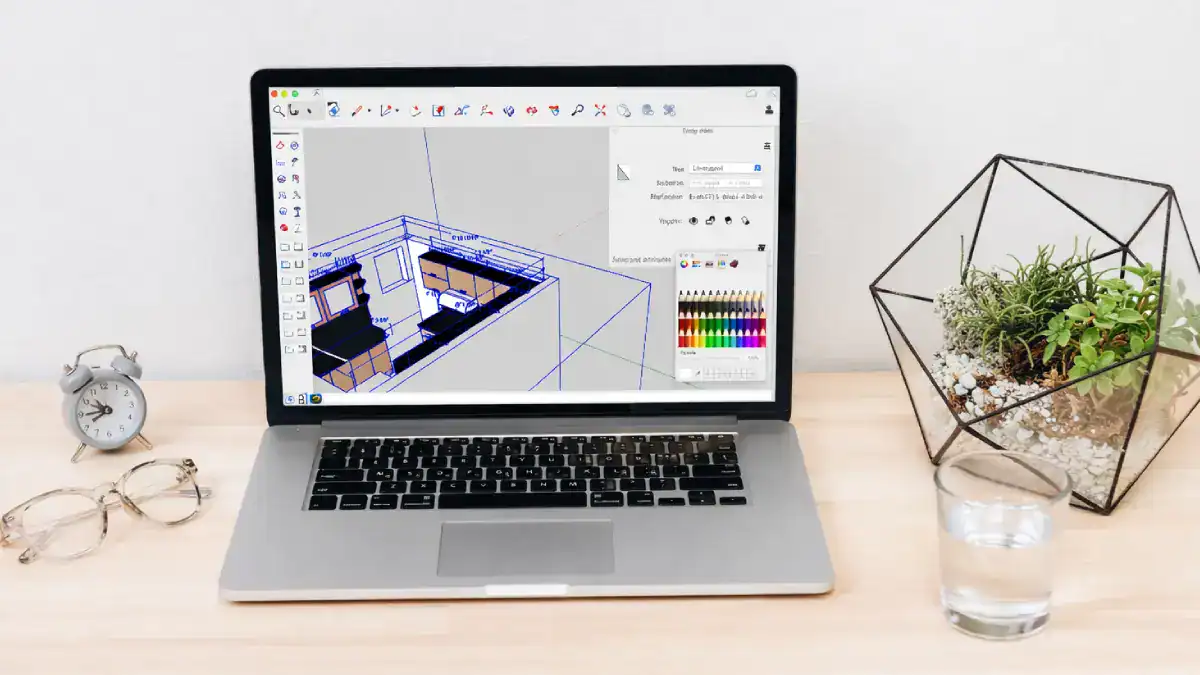
If you are searching for a laptop for SketchUp, the issue usually surfaces when the model is heavier than expected and someone needs to make a live change in front of a client. That is when performance stops being technical and starts being commercial.
Most laptops can open SketchUp. What separates a workable device from a liability is how it behaves during late-stage revisions, when rendering extensions are active, reference drawings are open, and nobody wants to say, “Let’s circle back after this meeting.”
Why Choosing the Right Laptop Matters for Architecture Teams Using Sketchup
Choosing the right laptop matters for architecture teams using SketchUp because hesitation changes behaviour. When orbiting stutters or scene changes lag, people stop exploring alternatives and settle for what loads smoothly. Over time, that shapes design decisions more than anyone admits.
For example, in a mid-sized practice preparing for a planning submission, review meetings often involve switching between model views, checking setbacks, and validating heights against overlays.
If the review machine pauses during these checks, the team shifts from testing ideas to managing the device. That subtle shift affects confidence, and confidence affects decision speed.
So the hardware question directly influences how fluidly a team can test, correct, and confirm design intent under time pressure.
Understanding How SketchUp Uses Hardware
SketchUp stresses different components at different moments. When performance degrades, the issue’s slowdown appears in specific behaviours. Identifying which behaviour appears first tells you where the bottleneck sits.
That distinction matters, because buying the wrong upgrade does not solve the real constraint.
CPU Performance
CPU responsiveness determines whether modelling feels immediate or delayed. When editing geometry, regenerating sections, or adjusting grouped elements, SketchUp relies on strong single-core performance. If the processor cannot maintain sustained clock speeds under load, interaction starts to feel heavy.
For production architectural environments, prioritise high-performance mobile CPUs capable of sustaining strong single-core speeds above roughly 4.5 GHz under load. Sustained performance matters more than brief peak boosts, because modelling sessions are rarely short bursts.
GPU Role in Viewport and Rendering Extensions
Once modelling is smooth, visual stability becomes the next constraint. The GPU governs viewport rendering, shadows, textures, and real-time extensions. SketchUp’s classic renderer requires OpenGL support, so driver maturity and compatibility are not optional details.
Under heavier models, insufficient VRAM leads to texture swapping. That swapping manifests as stutter during orbiting or momentary black flashes during presentation.
For architectural work, 8GB of VRAM is a sensible baseline. Larger or texture-heavy projects benefit from 12GB or more, especially when rendering tools operate alongside modelling. Stable drivers often matter as much as raw GPU tier, because predictability reduces presentation risk.
RAM Requirements for Large Architectural Models
When modelling and viewport performance feel acceptable but switching between applications slows down, memory pressure is usually the cause.
We all know SketchUp rarely operates in isolation. Layout files, consultant PDFs, browser-based planning portals, and email attachments all compete for memory.
As RAM fills, the operating system begins reallocating resources, increasing pause times between task switches. That delay is subtle at first. However, in coordination reviews where multiple files open in quick succession, it becomes noticeable.
For most architecture teams, 32GB is a practical production baseline. Sixteen gigabytes may function for lighter work, but it leaves less headroom for parallel tools. Technical leads or rendering-focused roles often benefit from 64GB, particularly in BIM-linked environments.
Storage Speed and Project File Access
After CPU, GPU, and RAM are balanced, storage becomes visible through workflow rhythm. File open times, save cycles, and version swaps depend on SSD speed. NVMe drives reduce small but frequent delays that accumulate across a working day.
For active project environments, 1TB NVMe storage is a comfortable starting point. Teams managing larger asset libraries or rendering outputs often find 2TB becomes necessary within a few years, especially as project complexity increases.
Minimum vs Recommended Laptop Specifications
Once each bottleneck is understood in context, minimum specifications and recommended specifications serve different purposes. Minimum configurations allow SketchUp to operate. Recommended configurations preserve modelling flow during complex delivery phases.
| Component | Minimum baseline | Recommended |
|---|---|---|
| CPU | Modern 64-bit mobile CPU | High-performance mobile CPU with sustained clocks |
| GPU | OpenGL-capable GPU | Discrete GPU with 8–12GB+ VRAM |
| RAM | 8–16GB | 32GB production baseline |
| Storage | Basic SSD | 1TB+ NVMe SSD |
| OS | Supported Windows/macOS | Current supported version with long support runway |
Best Laptops for SketchUp in 2026
Rather than focusing on a single best model, it is more useful to evaluate laptop classes capable of supporting architectural workflows. The following categories represent performance envelopes suitable for SketchUp in production settings.
Asus ROG Strix Scar 16
The ROG Strix Scar 16 fits SketchUp-heavy architectural work because it stays steady when the model stops being simple. When you are orbiting through layered geometry, toggling shadows, and checking layouts against consultant references, the machine does not hesitate at every transition.
That consistency matters during live coordination sessions, where a few seconds of lag can quietly change how confident the team feels about testing alternatives.
In an Australian AEC project cycle, especially close to planning submissions or client reviews, you are rarely running SketchUp alone. You are switching between drawings, PDFs, emails, and sometimes a rendering window while someone waits for an answer.
Core Specs of ROG Strix Scar 16 (2025)
- Windows 11
- Intel Core Ultra 9 275HX processor
- NVIDIA GeForce RTX 5080 Laptop GPU with 16GB VRAM
- 32GB DDR5 RAM (expandable to 64GB)
- 2TB PCIe 4.0 NVMe SSD
- 16-inch 2560 × 1600 display, 240Hz, 100% DCI-P3
- Wi-Fi 7 and Bluetooth 5.4
- HDMI 2.1, USB-C, USB-A, 2.5G LAN
- 90Wh battery
- Approx. 2.8 kg weight
HP OMEN MAX 16
The HP OMEN MAX 16 suits SketchUp workflows where models do not stay lightweight for long. As geometry builds up and real-time visualisation tools run in the background, what matters is whether orbiting, scene switching, and quick adjustments remain fluid.
In an Australian AEC project, especially during design development or pre-submission checks, that smoothness keeps conversations focused on setbacks, heights, and compliance rather than waiting for the viewport to catch up.
It also handles the everyday switching that happens in real delivery cycles. SketchUp rarely runs alone, and teams often move between drawings, consultant PDFs, planning overlays, and rendering previews in the same sitting.
Core Specs of HP OMEN MAX 16
- Windows 11
- Intel Core Ultra 9 HX series processor
- NVIDIA GeForce RTX 50 series Laptop GPU (up to RTX 5090 options)
- Up to 64GB DDR5 RAM
- PCIe Gen4 / Gen5 NVMe SSD storage options
- 16-inch high-refresh display (up to 240Hz)
- Wi-Fi 7 and Bluetooth
- HDMI 2.1, USB-C, USB-A ports
- Advanced cooling design for sustained performance.
Apple M4 Max Chip 16 Inch
For SketchUp users working in a Mac-based studio, the 16-inch MacBook Pro with M4 Max chip fits naturally into an Apple-centric workflow. It handles large architectural models smoothly while keeping everyday navigation, scene switching, and layout checks responsive.
In Australian AEC projects where site visits, client meetings, and office work blend together, the combination of stable performance and strong battery life makes it practical rather than flashy.
What stands out in real delivery cycles is how consistent it feels across long sessions. Whether you are reviewing a model in the studio, marking up drawings during a client presentation, or adjusting materials while referencing consultant files, it stays predictable.
Core Specs of 16-inch MacBook Pro M4 Max
- Apple M4 Max chip
- Up to 16-inch Liquid Retina XDR display
- Unified memory options up to high capacities
- Fast SSD storage options
- Thunderbolt / USB-C ports
- HDMI port
- SDXC card slot
- Wi-Fi and Bluetooth
- All-day battery performance.
Legion Pro 7i (16″, Gen 10)
For SketchUp work that moves beyond simple massing into layered, consultant-linked models, the Legion Pro 7i (16″, Gen 10) feels steady under pressure.
When orbiting through dense geometry, toggling shadows, and jumping between scenes during a coordination review, it keeps interactions smooth enough that you can keep refining instead of waiting.
In an Australian AEC setting, especially around design development and pre-construction checks, that steadiness helps maintain momentum when decisions need to happen in the room.
It also suits the way mid-sized studios actually operate. SketchUp is rarely the only tool open, and switching between drawings, PDFs, email threads, and rendering previews is normal during delivery weeks. This class of laptop handles those transitions without turning every task switch into a pause.
Core Specs of Legion Pro 7i (16″, Gen 10)
- Intel Core Ultra 9 HX series processor
- NVIDIA GeForce RTX 50 series Laptop GPU options
- Up to 64GB DDR5 RAM
- Fast NVMe SSD storage options
- 16-inch high-resolution display (high refresh rate options)
- Thunderbolt / USB-C and USB-A ports
- HDMI 2.1
- 2.5G Ethernet
- Wi-Fi 7 and Bluetooth.
Dell Alienware 18 Area-51
The Alienware 18 Area-51 suits SketchUp workflows where model size and visual complexity push past what lighter machines handle comfortably.
When you are navigating dense architectural geometry, running shadow studies, and checking rendered previews in the same session, the larger chassis and sustained cooling help keep performance stable.
In an Australian AEC context, especially during late-stage coordination or client-facing reviews, that consistency reduces the risk of awkward pauses when someone asks for a live change. It also fits teams that treat the laptop as a portable workstation rather than a travel device.
Core Specs of Alienware 18 Area-51
- Intel Core Ultra HX series processor options
- NVIDIA GeForce RTX 50 series Laptop GPU options
- Up to 64GB DDR5 RAM
- High-capacity NVMe SSD storage options
- 18-inch high-resolution display with high refresh rate options
- Thunderbolt / USB-C and USB-A ports
- HDMI 2.1
- 2.5G Ethernet
- Advanced cooling system for sustained workloads
Choosing Laptops Based on Team Roles
In SketchUp-driven architecture teams, not every role stresses a laptop the same way, and that difference shows up once models grow beyond simple massing. So instead of buying identical machines across the board, match the laptop to how each role actually interacts with SketchUp under real project pressure:
- Concept designers need strong single-core responsiveness and stable GPU performance so orbiting, shadow testing, and rapid massing edits stay fluid during live design reviews.
- Junior architects benefit from balanced CPU, GPU, and 32GB-class memory setups because production SketchUp models plus Layout sheets and reference PDFs quickly expose limited RAM.
- Model managers should prioritise higher RAM and fast NVMe storage since frequent model opens, version comparisons, and large file saves in SketchUp are where memory and disk bottlenecks first appear.
- Rendering specialists require higher GPU tiers and adequate VRAM because real-time visual extensions and high-resolution material previews inside SketchUp push visual processing far harder than basic modelling.
- BIM or technical leads need stable multi-application performance, as they often run SketchUp alongside coordination platforms, documentation tools, and clash review files in the same session without slowing down decision-making.
Standardising Hardware Across Architecture Teams
Standardisation reduces variability in support outcomes. When devices differ widely, driver environments diverge, troubleshooting becomes inconsistent, and downtime increases.
For small-to-mid architecture businesses, two or three approved configurations usually cover most needs. A baseline build supports the majority of modellers, while a higher-tier build addresses rendering-heavy roles.
Over time, sustained modelling loads and thermal cycling gradually reduce laptop efficiency. A realistic refresh cycle of three to four years helps avoid performance fatigue and rising maintenance disruptions. Extending beyond that often results in more frequent slowdowns during critical project phases.
IT and procurement considerations
Strong specs do not protect SketchUp delivery timelines if the device fails at the wrong moment. In real AEC projects, modelling stability depends just as much on support structure and refresh planning as it does on CPU or GPU tier.
If you want laptops that truly support SketchUp under submission pressure, here are the operational checks that matter:
- Prioritise next-business-day warranty support because if a primary SketchUp machine fails during a DA submission week, waiting several days for service can stall modelling and coordination progress.
- Maintain at least one configured spare laptop that mirrors your standard SketchUp build so a hardware failure does not freeze live model reviews or consultant coordination.
- Standardise configurations across the team to reduce driver inconsistencies and unexpected SketchUp behaviour between machines during collaborative sessions.
- Plan a realistic three-to-four-year refresh cycle, as sustained modelling loads and thermal wear gradually reduce performance and introduce avoidable slowdowns in larger projects.
- Consider financing options that spread refresh costs predictably, preventing delayed upgrades that force teams to push ageing laptops beyond their comfortable SketchUp workload.
How Interscale Can Help
Laptop refresh decisions usually stall for one reason: timing. Not because the current SketchUp machines are perfect, but because replacing five or eight devices at once feels disruptive to cashflow, especially mid-project. So teams stretch ageing laptops another year, and performance fatigue quietly becomes normal.
Through Interscale IT equipment leasing, the idea is to remove the all-at-once budget spike that makes refresh decisions hard to execute.
When device replacement follows a planned cycle instead of a forced delay, SketchUp performance stays consistent across the team rather than drifting depending on who has the oldest laptop.
The goal is simple: Keep modelling responsiveness predictable as projects scale, so hardware never becomes the quiet reason decisions slow down.
If you’d like to discuss further how we support your SketchUp implementation and the best laptop options, schedule a free consultation with our experts.
Related Guides for Architecture Laptop Workflows
Different stages of architectural work require different laptop capabilities. Explore these guides to choose the right device for each task:
- How to Choose the Best Laptop for Architecture
Explore 2026’s top picks, key specs, and smart saving tips for architects. - How to Choose the Best Laptop for Rendering in 2026
Learn what GPU and system specs are needed for smooth rendering and real-time visualization. - How to Choose the Best Budget Laptop for AutoCAD
Understand the hardware priorities for efficient 2D drafting without overspending. - How to Choose the Best Laptop for Revit in 2026
Discover the ideal specifications for handling BIM models and daily Revit workflows. - Tips for Buying the Best Laptop for 3D Modeling on a Budget
Find practical ways to balance performance and cost for modeling software.