
Key Takeaways
- AutoCAD’s official minimum specs understate real AEC workloads — target 16 GB RAM and NVMe SSD as your baseline.
- Budget AutoCAD laptops in Australia fall between AU$1,100–AU$1,900, with gaming-class hardware often delivering the best value.
- MacBooks suit 2D drafting and PDF review but fall short when Revit, Navisworks, or AutoCAD plug-ins are part of the workflow.
- Hardware leasing keeps capital free while ensuring every team member runs a production-capable machine.
In 2026, the best budget laptop for AutoCAD is more about finding a balance between financial, machine, and real project demands. Many Australian AEC teams tell us they need reliable 2D and lightweight 3D performance under AU$1,500, without compromising on durability. That includes long site days, multi-tab workflows, and the occasional model navigation that pushes beyond simple drafting.
The dilemma is that spending less upfront often means more heat, slower storage, or no upgrade path. Of course, it can hurt long-term productivity. But overspending on high-tier GPUs that sit idle in 2D drafting is just as inefficient.
That’s why at Interscale, we often help clients access performance machines through structured hardware leasing. This keeps your capital free for tools that scale, while ensuring each team member stays equipped and productive. And in this article, we gonna break down all the details around a budget laptop for AutoCAD in 2026.
What Does Budget Mean for AutoCAD?
A “budget” laptop for AutoCAD refers to the lowest cost that still delivers stable performance for drafting, navigation, and daily project work without slowdowns.
In 2026, most capable AutoCAD laptops fall within these practical price ranges:
- AU$1,100–AU$1,300: suitable for 2D drafting, markups, and basic documentation
- AU$1,300–AU$1,600: ideal for everyday production work and light 3D modelling
- AU$1,600–AU$1,900: better for large drawings, point clouds, and BIM-related workflows
Many budget-friendly AutoCAD laptops use gaming-class hardware because high-frequency CPUs, dedicated NVIDIA RTX graphics, and stronger cooling systems improve drawing responsiveness and viewport performance. Models like the Lenovo LOQ 15 or HP Victus 15 sit in this category, offering reliable performance without workstation-level pricing.
Therefore, before comparing laptops, it is worth separating hardware cost from software cost. Interscale’s guide to AutoCAD licence price in Australia can help with that baseline.
AutoCAD System Requirements
The system requirements for AutoCAD often seem lightweight on paper, but real AEC workflows usually push laptops harder than the minimum spec suggests. Autodesk’s official requirements tell you what can run AutoCAD.
Meanwhile, a buying decision of an AutoCAD laptop needs to consider XRefs, layout tabs, PDFs, browser tabs, Teams, Outlook, shaded views, and the occasional Revit or Navisworks-adjacent workflow.
Below are the current AutoCAD 2026 system requirements for Windows and macOS, along with the practical interpretation for Australian teams buying laptops for daily production work.
AutoCAD Minimum Requirements for Windows (Basic 2D Use)
For basic 2D use, Autodesk lists the following baseline requirements for AutoCAD 2026:
- Windows 11 or Windows 10
- 2.5–2.9 GHz processor with 8 logical cores
- 8 GB RAM
- 2 GB GPU with 29 GB/s bandwidth
- DirectX 11 support
- 1920 × 1080 display resolution
- 10 GB free disk space, SSD recommended
- MS-Mouse compliant pointing device
- .NET Framework: .NET 8
AutoCAD 2026 for macOS
AutoCAD for Mac can suit users who mainly work with 2D drafting, markups, PDFs, and lighter design review.
Autodesk supports AutoCAD on recent macOS versions, including Apple silicon and Intel 64-bit hardware.
The buying point is that 8 GB memory on Macbook may run lighter files. But a 16 GB RAM Macbook is the safer minimum if the AutoCAD user switches between drawings, email, browser tabs, cloud storage, and review tools.
A MacBook can still make sense for an AutoCAD designer who works mostly in clean DWG files and PDF markups. It becomes less suitable when the role needs the wider Autodesk production stack, especially Revit, Navisworks, plug-ins, or AutoCAD specialised toolsets.
Buying Baseline for AutoCAD Laptops
For business use, AutoCAD laptop requirements should be read as a baseline, which is why your buying decision should focus on:
- 16 GB RAM for standard production work
- 32 GB RAM for large XRefs, point clouds, shaded views, or Revit-adjacent review
- A recent Intel Core i5/i7 or AMD Ryzen 5/7 processor
- SSD storage, preferably NVMe
- Dedicated NVIDIA RTX graphics where 3D views, model review, or heavier visual work
- Windows if the role needs Revit, Navisworks, plug-ins, or specialised AutoCAD toolsets
- Strong cooling for longer drafting or review sessions
- External display support for detailed drawing work
For example, a 22-person drafting team in Adelaide may not need RTX graphics for every user. But if two staff regularly open consultant files, terrain references, shaded 3D views, or coordination models, those machines should sit above the basic spec.
That is why the best AutoCAD laptop for Australia AEC teams is not always the cheapest machine that can install the software. The best laptop for AutoCAD is usually the one that gives enough headroom for the next few years of drawings, references, updates, and support.
Recommended Specs for AutoCAD in 2026
The recommended specs we offer below still need to specify how often you push past 2D. If you’re drafting floor plans with xrefs or reviewing 3D assemblies, system responsiveness becomes more than a luxury. Below is what we’ve seen work best in live projects across Australia AEC.
Processor (CPU)
The best CPU for AutoCAD prioritises clock speed over core count. A modern Intel Core i5 or AMD Ryzen 5 from the last two generations gives smooth redraws and stable command processing. This might be a good fit for your setup if you work on large sheets or multi-tab layouts.
Graphic Card (GPU)
A good GPU for AutoCAD helps when orbiting models or working with shaded views. NVIDIA GeForce RTX 3050 or RTX 4050 cards support real-time interaction without stutter. This matters when you use 3D views, even lightly, during project reviews or concept work.
RAM
The minimum RAM requirement for AutoCAD is 16GB for stable multitasking. It keeps drawing sessions smooth while switching between sheets, emails, and references. Upgrading to 32GB is beneficial if your work involves large datasets or complex block structures.
Storage
The storage type for AutoCAD should always be SSD, and preferably NVMe. A 512GB SSD provides sufficient space for active projects and reduces wait time when opening xrefs or saving backups. This is often overlooked but directly improves daily productivity.
Display
The ideal display setup for AutoCAD strikes a balance between size, resolution, and visual accuracy without increasing the total device cost. A 15.6-inch Full HD screen with IPS technology typically offers the most practical mix. You get clear visuals, wide viewing angles, and consistent colour reproduction.
For users managing material palettes or detailed renders, 100% sRGB panels deliver more accurate results. High refresh rates, such as 120Hz or 144Hz, can improve navigation when panning large models or orbiting 3D views. Just remember that colour quality and contrast remain the bigger priority for CAD-focused displays.
Lease High-Performance Laptops for AutoCAD in Australia
Equip your team with high-performance laptops—no upfront cost, predictable monthly payments, and full support from Interscale.
Key Factors to Consider When Choosing a Budget Laptop for AutoCAD
Type of Work (2D or 3D)
The type of AutoCAD work you focus on directly affects how your laptop performs. For 2D drafting, common in architectural layouts, schematics, and council sets, what matters most is CPU clock speed and fast RAM. In many cases, integrated graphics are sufficient, allowing more budget to be allocated toward a better processor or display.
3D modelling, however, places more demand on GPU performance and VRAM. When navigating shaded views, reviewing terrain meshes, or coordinating BIM elements, a dedicated graphics card makes the difference in viewport responsiveness. Overspending on graphics for 2D-only work, or underspending for 3D coordination, often leads to slowdowns that impact delivery.
Portability vs Performance
The balance between portability and performance depends on where you use your machine. Thinner models are easier to carry but often throttle faster due to limited cooling. Larger laptops with gaming-class hardware offer better sustained speed, especially for extended sessions.
A mobile architect working across sites may prefer a lightweight chassis with solid battery life and moderate specs. A studio-based user can benefit from a heavier unit that supports better airflow and more powerful components. This choice often defines long-term comfort and reliability in your workflow.
Windows vs Mac
The platform AutoCAD runs best on is still Windows for full functionality and plug-in support. Most Australian AEC firms standardise on Windows-based tools, including Revit and Navisworks, making cross-software compatibility smoother. Broad hardware options also make cost control easier.
macOS versions of AutoCAD have improved but still offer limited access to some features. Apple M-series chips run 2D workflows well, but pricing is higher for comparable power. If you’re choosing based on compatibility, flexibility, and long-term usability, Windows remains the more pragmatic option.
Best laptops for AutoCAD in 2026
Lenovo LOQ 15
The Lenovo LOQ 15 is a gaming laptop that suits AEC professionals working across drafting, client presentation, and early-stage 3D modelling. As a gaming laptop, its combination of RTX 3050/4050 graphics and a high-frequency H-class CPU makes it ideal for navigating large AutoCAD files.
So, you’re applying shaded views or reviewing point clouds in tools like Navisworks or SketchUp.
For Australian architects, engineers, and consultants who juggle field visits and desktop workloads, this model offers a dependable middle ground. It’s sturdy enough to manage site documentation and powerful enough to run daily production tasks without thermal drop-off. The price range (AU$1,200–AU$1,600) aligns well with operational budgets for smaller teams.
Key Specs of Lenovo LOQ 15
- Intel Core i7-13620H or AMD Ryzen 7 7840HS
- Dedicated NVIDIA GeForce RTX 4050 / RTX 3050
- 16GB DDR5
- 512GB NVMe SSD
- 15.6-inch FHD (1920 × 1080) IPS, 144Hz
- 2.4 kg
- Wi-Fi 6, USB-C, HDMI 2.1.
MacBook M3
The MacBook M3 supports 2D drafting, PDF markup, and cloud-based model review tasks for AEC professionals working in macOS environments. Its M3 chip handles Autodesk Docs, BIMcollab Zoom, and AutoCAD LT with smooth responsiveness. The price sits between A$1,477 and A$2,379 depending on configuration.
AEC teams using SketchUp Pro, Vectorworks, or basic CAD tools in macOS will find the MacBook M3 effective for design markups and light 3D reviews. It performs reliably across multi-app workflows like email, spec writing, and model annotation. While not built for rendering or parametric modelling, it holds its own for mobile-first tasks.
Key Specs of MacBook M3
- Apple M3 (8-core CPU, 10-core GPU)
- 8GB or 16GB unified memory (configurable)
- 256GB to 1TB SSD
- 13.6-inch Liquid Retina (2560 × 1664), 500 nits
- 1.24 kg
- Up to 18 hours battery life
- Wi-Fi 6E, 2× Thunderbolt 4, MagSafe 3.
MSI Thin GF63 12UCX
The MSI Thin GF63 12UCX offers practical portability for AutoCAD users who move between studio desks, client meetings, and job sites. The Intel Core i7-12650H handles 2D drafting and basic 3D modelling with reliable speed. Meanwhile, the RTX 4050 graphics card adds enough visual power for shaded views and rendering previews.
Priced between AU$1,200 and AU$1,400, it fits well within budget caps for AEC firms scaling up workstations incrementally. The cooling system performs well under load, helping avoid performance drops during rendering or multitasking with site documentation and drawings. This laptop is viable for everyday use in practice juggling multiple tools like AutoCAD, Bluebeam, or SketchUp.
Key Specs of MSI Thin GF63 12UCX
- Intel Core i5-12450H
- NVIDIA GeForce RTX 2050
- 8GB DDR4 (upgradable to 16GB)
- 512GB NVMe SSD
- 15.6-inch FHD (1920 × 1080) IPS
- 1.86 kg
- Up to 5-7 hours battery life
HP Victus 15
The HP Victus 15 stands out as a practical workstation for AEC professionals managing dense AutoCAD files, 3D references, and occasional model exports. Its thermal design keeps clock speeds steady during long plotting or layout sessions, which is crucial when deadlines span multiple drawing sets. With RTX 2050 or RTX 3050 options, it suits users who mix 2D documentation with shaded view presentations or light sketching in SketchUp.
What makes the Victus 15 relevant is its flexibility across build tiers, allowing project teams to align configuration with workload and capital. We’ve seen it adopted in SME studios that need consistent viewport performance without overextending their budgets. Pricing between AU$1,100 and AU$1,700 positions it well for those upgrading ageing units without stepping into full mobile workstation territory.
Key Specs of HP Victus 15
- Intel Core i5-13420H or AMD Ryzen 5 7535HS
- GPU Variants: NVIDIA GeForce RTX 2050 / RTX 3050
- 16GB DDR4
- SSD 512GB NVMe SSD
- 15.6-inch FHD (1920 × 1080) IPS, 144Hz
- Keyboard: Full-size with numeric keypad
- 1-year standard with optional care packs.
Gigabyte G5 (2024)
The Gigabyte G5 (2024) is designed for professionals who work with heavier AutoCAD sheets, detailed SketchUp models, or federated IFC models. Its RTX 4060 GPU supports smooth pan-orbit performance, even with multiple xrefs and section views active. This GPU level also benefits tasks like high-resolution plotting, Enscape walk-throughs, or navigating large construction documents on BIM viewers.
AEC teams dealing with complex references, such as façade packages, coordination drawings, or civil base layers, will find the G5 to be stable under load. WINDFORCE cooling helps the system maintain stable performance during long drafting or rendering sessions, without dropping clock speeds under heat. At AU$1,500 and AU$1,900, this laptop offers workstation-level power in a form factor that’s still practical for everyday use.
Key Specs of Gigabyte G5 (2024)
- Intel Core i7-12650H
- NVIDIA GeForce RTX 4060
- 16GB DDR5
- 512GB or 1TB NVMe SSD
- 15.6-inch FHD (1920 × 1080) IPS, 144Hz
- WINDFORCE technology with dual fans cooling system
- Mini DP 1.4, HDMI, USB-C.
ASUS ProArt P16
The ASUS ProArt P16 belongs in our best laptops for AutoCAD in 2026 list only if your budget allows controlled spending over a longer replacement cycle. The ASUS ProArt P16 is not the most economical answer for plain 2D drafting.
Because some teams are better off buying modest machines for standard drafting users, then giving one or two heavier users more graphics and memory headroom. This is where the ProArt P16 becomes easier to justify.
The ASUS ProArt P16 makes more sense when you compare an AutoCAD laptop with RTX 4060 options, or newer RTX 50-series options, because the role already pushes beyond basic drawing production.
ASUS Australia lists the ProArt P16 with up to an AMD Ryzen AI 9 HX 370 processor and NVIDIA GeForce RTX 5070 Laptop GPU on its Australian product page.
A Melbourne consultancy adding a senior designer may choose this type of laptop for one high-use role, while keeping more modest machines for general drafting staff. That keeps the spend tied to workload.
Key Specs of ASUS ProArt P16
- AMD Ryzen AI processor, depending on configuration
- NVIDIA GeForce RTX Laptop GPU, with RTX 50-series options listed by ASUS Australia
- 32 GB or higher memory options depending on configuration
- 1 TB or higher SSD options
- 16-inch OLED display
- Windows 11
- Creator-focused chassis with strong display quality
If your AutoCAD users also work with Revit-linked models or BIM coordination, Interscale’s guide to choosing a laptop for Revit can help show when standard CAD specs are no longer enough.
How to Make a Budget AutoCAD Laptop Last Longer
Buying a budget laptop for AutoCAD doesn’t mean you have to replace it quickly. With the right setup and usage habits, even mid-range hardware can remain reliable for several years. The key is reducing unnecessary system strain while maintaining consistent performance.
Optimise AutoCAD Settings for Performance
AutoCAD includes several performance settings that can significantly reduce hardware load. Disable visual effects you don’t need, such as high-quality shadows, smooth line display, or advanced rendering features when working on standard drawings. Using simpler visual styles like 2D Wireframe or Shaded instead of realistic modes helps preserve GPU and CPU resources.
You can also:
- Turn off automatic background updates when handling large files
- Reduce annotation scaling where possible
- Limit real-time previews for complex operations
These small adjustments prevent slowdowns and overheating on budget machines.
Keep Files Clean and Lightweight
Unoptimised drawings are one of the main reasons laptops struggle over time. Regular file maintenance helps AutoCAD run smoothly.
Best practices include:
- Use PURGE, AUDIT, and OVERKILL commands regularly
- Remove unused blocks, layers, and external references
- Break very large projects into smaller referenced files (Xrefs)
- Avoid importing overly detailed geometry when not required
Cleaner files mean less RAM consumption and faster load times.
Upgrade What You Can
Many budget laptops allow partial hardware upgrades, which can dramatically extend usability.
If possible:
- Upgrade RAM to at least 16 GB (or higher for 3D workflows)
- Replace HDD storage with an SSD if not already included
- Maintain at least 20–25% free disk space for optimal performance
RAM upgrades are often the most cost-effective way to improve AutoCAD responsiveness.
Manage Heat and Cooling
Thermal throttling is a common issue in affordable laptops. When temperatures rise, performance automatically drops to protect internal components.
To reduce overheating:
- Use a cooling pad during long drafting sessions
- Keep air vents clean and dust-free
- Avoid using the laptop on soft surfaces like beds or couches
- Monitor temperatures using system utilities
Better cooling directly translates to more stable performance and longer hardware lifespan.
Maintain Drivers and System Updates
Outdated graphics drivers can cause crashes, display glitches, or slow viewport performance. Regularly updating GPU drivers and operating system patches ensures compatibility with newer AutoCAD versions. However, avoid installing unnecessary background software that consumes RAM and CPU power.
Use Smart Workflow Habits
Your working habits also influence laptop longevity. Consider:
- Closing unused applications while running AutoCAD
- Restarting the system periodically to clear memory usage
- Using cloud storage or external drives to archive old projects instead of storing everything locally
A lean system environment helps budget hardware perform closer to higher-end machines.
Tips for Saving Big When Buying a Laptop for AutoCAD
The best way to reduce hardware costs often starts with timing, but the bigger saving comes from matching each laptop to the role it actually needs to support.
In Australia, we’ve seen consistent pricing dips during end-of-financial-year periods, education intake seasons, or clearance cycles tied to chipset updates. These windows can allow you to fit a higher-tier GPU, such as an RTX 4050 or RTX 4060, into a budget that normally only covers entry specs.
Still, a cheaper laptop is not always the better saving. For AutoCAD production work, the safer baseline is usually:
- 16 GB RAM
- A recent H-series CPU
- SSD storage
- Enough graphics headroom for the user’s actual files
And when your staff work with large XRefs, point clouds, shaded views, or Revit-adjacent review, moving closer to 32 GB RAM can save more time than shaving a few hundred dollars off the purchase price.
For Australian AEC teams with 15 to 100 staff, AutoCAD laptop procurement becomes part of the cost as well, which include:
- New starters
- Replacement units
- Warranty cover
- Spec consistency
Another practical strategy is spreading hardware costs through structured financing or leasing.
With Interscale hardware leasing, a laptop priced at AU$1,500 can be planned as a monthly operating cost rather than a one-off capital purchase, depending on the term and approval structure.
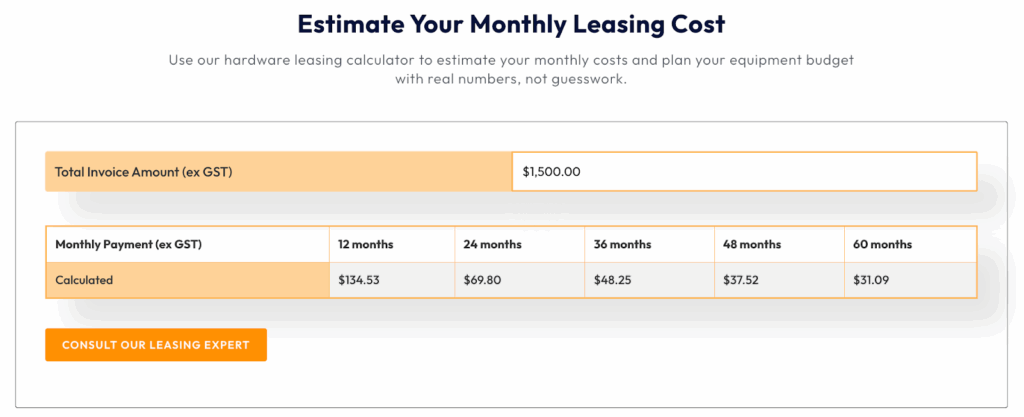
So, instead of treating every laptop purchase as a separate expense, leasing gives the team a cleaner way to plan refresh cycles, align specs to roles, and keep hardware costs predictable across project growth.
That is why the saving decision should not stop at the sticker price. Once laptops become part of a working fleet, the better question is:
- Which specs protect production time?
- Which costs can be planned
- Which compromises are likely to create support issues later?
In practice, that means:
- Keep 16 GB RAM as the floor for AutoCAD production work
- Move to 32 GB RAM where large XRefs, point clouds, or Revit-adjacent review are common
- Use gaming-class hardware carefully, especially where warranty, battery life, and support matter
- Match the laptop tier to the user’s workload, not the most demanding person in the office
- Check AutoCAD licence cost separately from hardware cost
Conclusion
Finding the right budget laptop for AutoCAD means focusing on what actually supports your day-to-day work. You’ll want a fast processor, at least 16GB of RAM, and a GPU that can handle shaded views or the occasional 3D task. If timed well, options from Lenovo, Apple, HP, MSI, and Gigabyte often land under AU$1,500 without cutting corners on reliability.