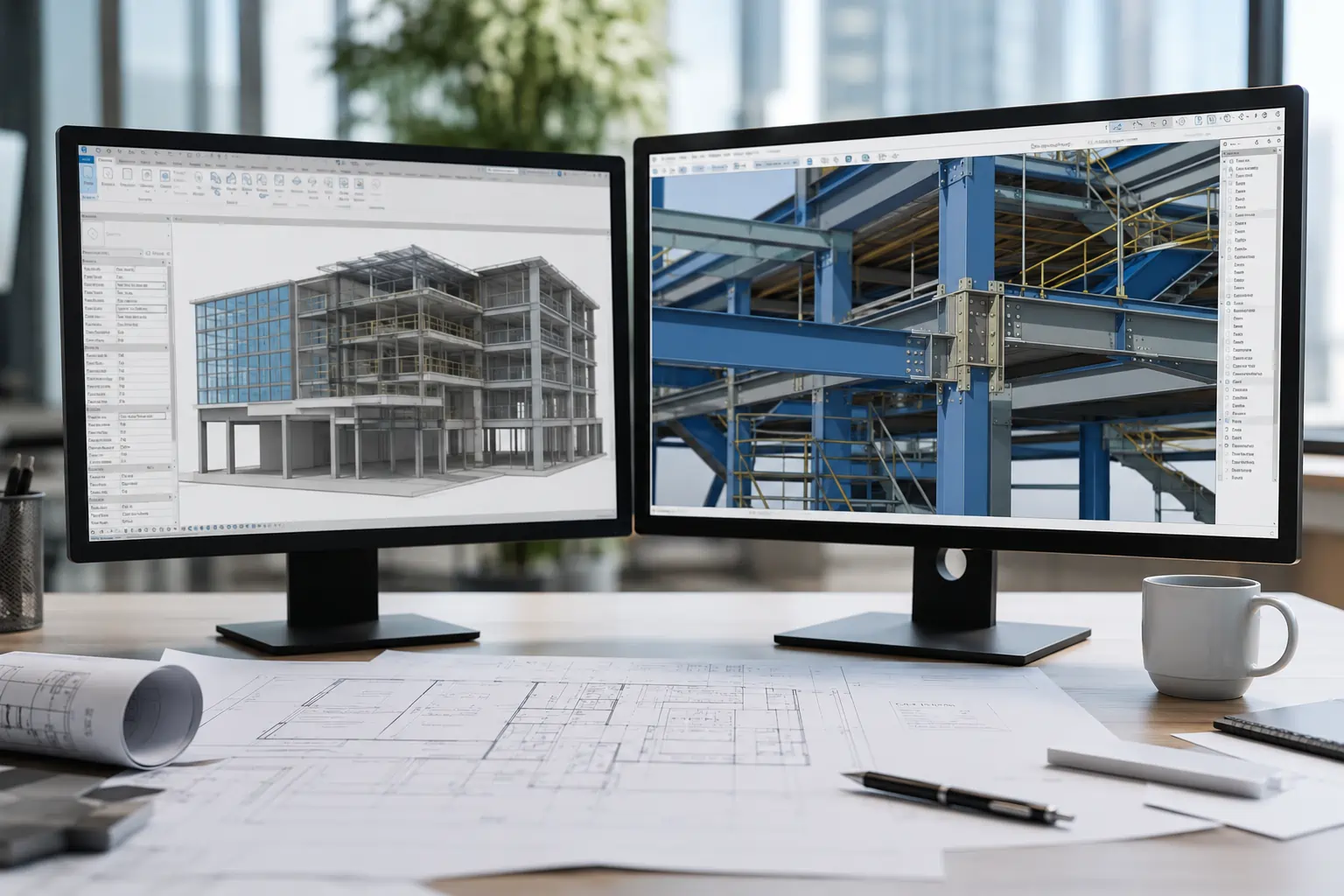
In the Australian Architecture, Engineering, and Construction (AEC) landscape, Revit vs AutoCAD is a phrase often heard, especially among professionals.
Both tools are big players in the sector, but they’re used for different things.
AutoCAD is great for 2D drafting and documentation. Meanwhile, Revit is the one to go for if you’re looking to create 3D Building Information Modelling (BIM).
That’s why we’re going to look at some of the differences between the two.
What Is Revit?
Autodesk Revit is a full BIM (Building Information Modelling) platform used widely in the AEC industry. It lets architects, engineers, and contractors work on the same building model, which helps speed up coordination and reduce mistakes.
One of the main Revit pros is how it handles multiple design elements — architecture, structure, and MEP — all in one place. This makes Revit especially useful for complex projects that need input from different disciplines.
You can also link CAD backgrounds and add detailed data, which helps keep everything consistent throughout the design process.
Still, there are some Revit cons to keep in mind. It’s more demanding on system resources, and it takes more time to learn than basic drafting tools.
If you’re comparing tools, the difference between Revit and AutoCAD comes down to purpose: Revit is for modelling and coordination, while AutoCAD is for drafting. They’re used for different parts of a project, and both have their place.
For a deeper look, check out “What is Revit? Features, Applications, & Differences With AutoCAD.”
What Is AutoCAD?
AutoCAD is one of the most widely used tools for 2D and 3D design work.
Unlike Revit, which focuses on modelling and collaboration, AutoCAD is centred around drawing. That’s one clear difference between Revit and AutoCAD — Revit builds a data-rich model, while AutoCAD is built for precision drafting.
One of the main AutoCAD pros is its flexibility. It works well across different industries like architecture, engineering, and manufacturing, and supports highly detailed designs. The software comes with toolsets that help automate repetitive tasks, such as creating, modifying, or annotating drawings.
AutoCAD’s strength lies in 2D drafting, making it a go-to option for layouts, schematics, and detailed documentation where full 3D modelling isn’t necessary.
However, like any tool, there are some AutoCAD cons to be aware of. It doesn’t offer the same model coordination or data integration as Revit, which can be a limitation in large-scale, multi-discipline projects.
In an Autodesk University presentation titled “TWO INTEROPERABILITY TASKS BETWEEN AUTOCAD & REVIT,” Andrea Gonzalez explained a workflow that bridges the two tools. The process involves cleaning up AutoCAD files — setting layers, removing unnecessary elements — before linking them into Revit.
This workflow shows how both platforms can be used together effectively, depending on the project needs.
More on Interscale Blog: Top 8 AutoCAD Alternatives Worth Trying in 2025
Core Functionality
AutoCAD is mainly used for 2D drafting and detailing. It’s well-suited for projects that need high precision and clean documentation.
One of the clear AutoCAD pros is that it gives users complete control over lines, layers, and layouts, which makes it a solid option for technical drawings and schematics. It also works across different industries, and you don’t need to build a full model to get your documentation done.
That flexibility is one reason it’s still a go-to tool for many professionals. But a common point people raise when discussing AutoCAD cons is that it doesn’t offer much in terms of built-in coordination between files or smart data linking.
Revit works differently. It’s focused on Building Information Modelling (BIM), which means you’re creating a 3D model that includes architectural, structural, and MEP data all in one place.
One of the big Revit pros is that once you set up the model, drawings and schedules update automatically when changes are made. That’s a huge help in keeping everything consistent.
That said, Revit isn’t always the easiest to learn, especially if you’re coming from a drafting background — and it requires a system that can handle large models. These are common Revit cons to be aware of, especially on smaller projects or teams without BIM experience.
Key Features Comparison
The main difference is that AutoCAD is CAD software, while Revit is for BIM.
AutoCAD is strong in creating precise 2D and 3D drawings. It’s a versatile drafting tool used across many design disciplines. One of its key features is how much control it gives over drawing elements — lines, layers, dimensions, and annotations — which is essential for detailed documentation work.
Revit, in contrast to AutoCAD, is built around a single, coordinated model. Its features support architectural, structural, and MEP design in one environment. As you work in Revit, views, schedules, and documentation update automatically, which helps teams stay consistent.
Both tools also support plugins that expand their capabilities.
AutoCAD plugins are usually geared towards speeding up the drafting process, while Revit plugins focus more on BIM-related tasks like energy analysis or structural modelling.
In short, the Revit vs AutoCAD comparison at the feature level reflects their intended use: AutoCAD for detailed drafting, Revit for integrated modelling.
When to Use Revit or AutoCAD?
If you’re working on a large commercial or institutional project — like a hospital, university campus, or high-rise development — Revit is usually the better option than AutoCAD.
These kinds of builds involve multiple disciplines working together across different systems.
Revit’s strength in model coordination helps teams manage architecture, structure, and MEP in a single, connected model. One key feature that fits here is real-time model updates — when a change is made in one part of the model, it’s automatically reflected in all related views and schedules. This helps avoid clashes, reduce rework, and keeps everyone aligned throughout the design process.
In contrast to Revit, AutoCAD fits better when the project is smaller in scale or highly detail-driven. For example, when you’re producing electrical diagrams for a retail shop, drawing HVAC plans for a fitout, or working on shop drawings for a manufacturing facility.
These types of tasks don’t require a full BIM model, but they do need precise linework, annotations, and control over layers.
A key feature that makes AutoCAD ideal here is its precision drafting environment, which gives users complete control over every line and object without being tied into a modelling workflow.
In many real-world projects, teams use both tools. For example, a mechanical engineer might create detailed ductwork layouts in AutoCAD, then link those into Revit to integrate with the architectural model. This combination allows teams to take advantage of AutoCAD’s speed in detailing and Revit’s strength in coordination.
Revit or AutoCAD, Which one is easier to learn?
If you’re new to design software, AutoCAD is generally easier to pick up.
It focuses on 2D drafting, which makes the interface more straightforward and the workflow easier to understand. That’s one of the AutoCAD pros — it’s intuitive enough that many people can start drawing with minimal training.
Revit, on the other hand, has a steeper learning curve. It’s built around BIM, which means learning how to manage views, link models, and handle components like walls, levels, and MEP systems.
These extra layers of complexity are part of what makes Revit powerful — but they also make it harder for beginners. This is often cited as one of the main Revit cons.
So which should you learn first?
If your work is mostly drafting or technical detailing, start with AutoCAD. If your projects involve coordination between trades or you’re heading towards BIM workflows, learning Revit makes more sense.
As for training, both tools have strong support. There are plenty of online courses, YouTube videos, and guided resources. For beginners looking to jump into Revit, the Revit Tutorial for Beginners in 2024 is a good place to start.
Revit and AutoCAD System Requirements
Because Revit and AutoCAD are built for different tasks, their system requirements vary quite a bit.
Revit is more demanding. It’s designed for large, data-heavy models, so it needs more memory and stronger graphics processing. Autodesk recommends at least:
- 64-bit Microsoft Windows 10 or 11
- 2.5 GHz or faster processor
- 16 GB RAM (minimum)
- 30 GB free disk space
- A dedicated GPU with at least 4 GB of video memory
AutoCAD runs well on lighter setups, especially for 2D drafting tasks. While 3D work will benefit from better specs, its requirements are generally lower:
- 64-bit Microsoft Windows 10 or 11
- 3.0 GHz processor (recommended)
- 8–16 GB RAM
- Around 10 GB free disk space
- Basic graphics card for 2D; better GPU for 3D
If you’re working on complex BIM projects or handling multiple linked models, Revit will need the extra power. For simpler drawing tasks, AutoCAD performs well on more modest systems.
Revit and AutoCAD License Price Comparison
There’s a noticeable price difference between AutoCAD and Revit, which reflects the type of work each software is built for.
As of 2025:
- AutoCAD: around USD $2,095 per year (roughly AUD $3,200)
- Revit: around USD $3,005 per year (roughly AUD $4,600)
If you only need basic drafting or simplified modelling, the LT versions are more affordable:
- AutoCAD LT: USD $530/year (approx. AUD $800)
- Revit LT: USD $560/year (approx. AUD $850)
There’s also the AEC Collection, which includes both AutoCAD and Revit, plus tools like Civil 3D and Autodesk Forma:
- AEC Collection: USD $3,675 per year (about AUD $5,600)
Prices can vary slightly depending on where you buy or if local taxes apply, but these give a general idea of what to expect.
AutoCAD vs Revit: Quick Comparison Table
If you’ve made it this far, you’ve seen how Revit and AutoCAD serve different purposes depending on the project type, team setup, and workflow.
Here’s a quick summary of everything we’ve covered to help you compare them side by side:
| Key Aspects | Revit | AutoCAD |
|---|---|---|
| Primary Use | 3D Building Information Modelling (BIM) | 2D drafting and basic 3D drawing |
| Best For | Large, multi-discipline projects with shared models | Detailed drawings, schematics, and documentation |
| Key Feature | Real-time model coordination across disciplines | Precision control in 2D drafting |
| Ease of Use | Steeper learning curve, more setup involved | Easier to learn, good for beginners |
| System Requirements | Higher — needs strong hardware for 3D and model data | Lower — can run on lighter setups, especially for 2D work |
| Annual Cost (USD) | $3,005 (approx. AUD $4,600) | $2,095 (approx. AUD $3,200) |
| LT Version Available | Yes — Revit LT for simplified BIM ($560/year) | Yes — AutoCAD LT for basic drafting ($530/year) |
| Works Well With | Teams handling architecture, structure, and MEP in one workflow | Designers creating clean, accurate technical drawings |
| Use Case Example | Designing hospitals, commercial buildings, or infrastructure projects | Creating HVAC plans, electrical layouts, or shop drawings |
More on Interscale Blog: AutoCAD vs SketchUp: Features, Pricing & Use Case Comparison
In Closing
Revit and AutoCAD each have their own strengths, and they can work well together rather than against each other. Ultimately, it comes down to what you need for the project – Revit, AutoCAD, or both.
That’s why Interscale is there for you every step of the way on your AEC projects, including helping you decide whether to go with Revit vs AutoCAD.
Not sure which one to choose?
Interscale helps you choose the right software for your AEC project, whether it’s BIM or CAD software.