 Skip to content

Revit 2026 is about practical improvements that address the friction points we’ve seen firsthand on real jobs. From tighter graphic performance to more intuitive documentation tools, this release aligns with what AEC professionals need to keep projects moving. And in a high-pressure market like Australia’s construction sector, the update is worth your attention.
Revit 2026 launched in April 2025, following steady demands for speed and smoother cross-disciplinary workflows. GPU-accelerated navigation, better sheet control, and cleaner coordination models show Autodesk is finally listening. Here at Interscale, we’ve already helped firms navigate the early adoption curve, from licensing and template migration to BIM readiness.
What we’ve learned so far is how upgrading will work best when it’s planned like a project. If you’re weighing the Revit 2026 download or unsure how to brief your team, this article maps it out. We cover new features, strategic rollout choices, and integration tactics, grounded in AEC project realities.
Revit 2026 New Features List
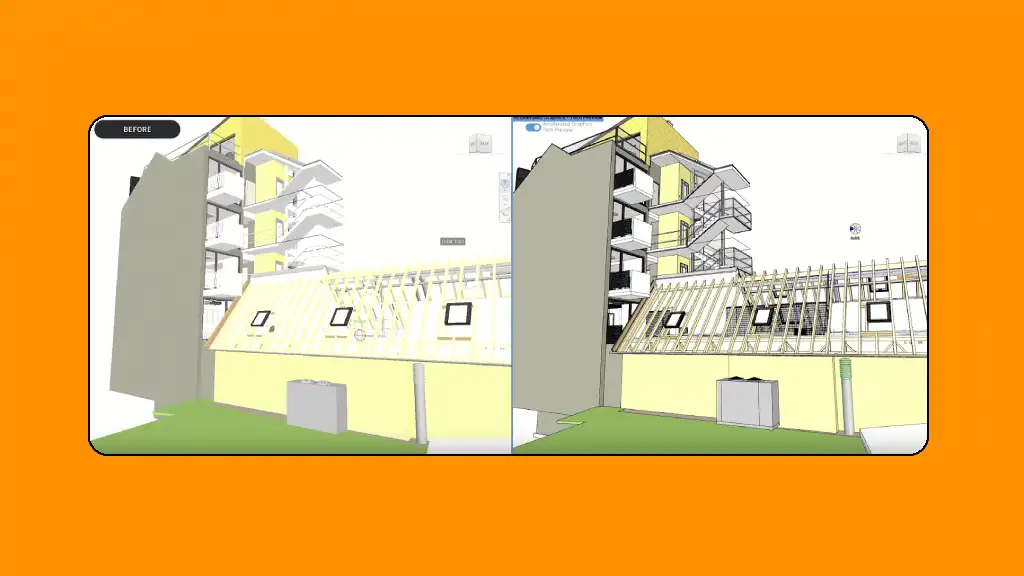
The new features in Revit 2026 bring practical, targeted improvements to daily workflows. Many changes focus on performance, documentation consistency, and modelling flexibility. These are the updates your team will likely notice first.
- Accelerated Graphics Mode: A new GPU-powered engine drastically improves 3D navigation. Expect 4× faster orbiting on large models, especially if your system meets the Revit 2026 system requirements.
- Toposolid Enhancements: Subsurfaces now support better visibility control. Civil teams benefit from negative elevations and expanded point support, which is great for site trenches and roads.
- View & Sheet Management: A new View-to-Sheet Positioning tool locks view placement across sheets. Sheet Collections gain scheduling and parameter support, reducing rework.
- Walls by Room and Segment: You can lay out walls by drawing boundaries or selecting segments. Layer assemblies are more flexible, and there is no forced core layer, and drag-and-drop reorder is enabled.
- Coordination Model & MEP Upgrades: Coordination files (e.g., Navisworks) load faster with better control. MEP tools now include global conductor settings and improved rebar options.
- Workflow Polishing: Tabbed Project Browser separates views, sheets, and families. The new Manage Links dialogue and live spell check reduce daily friction for all disciplines.
For an extended list, explore our Revit 2026 review and this Revit 2026 vs 2025 comparison.
What to Do to Ensure Smooth Integration into Revit 2026?
Here are several practical steps to ensure smooth integration into Revit 2026.
Assessing System and Software Compatibility
System compatibility is your first checkpoint. Revit 2026 needs Windows 10 (v1809+) or Windows 11, a multi-core processor, and at least 16 GB of RAM. For graphics acceleration, a DirectX 11 GPU with 4+ GB VRAM is essential.
If teams use high-polygon models or VR plugins like Enscape, anything less will bottleneck. Then test your workstations using large models to gauge real performance. Ensuring your hardware and software stack is aligned with Revit 2026’s performance capabilities avoids costly delays when models scale up.
The Revit 2026 download is available via Autodesk Access. You can also access it through Interscale’s software licensing service. We handle volume licenses, custom deployment, and post-setup validation, which are especially valuable if your team juggles legacy installs and hybrid setups.
Update Strategy: Company-Wide or Project-Based
The update strategy depends on where your active projects sit. A company-wide rollout ensures consistency but risks disrupting midstream deliverables. That’s where timing matters; you need to slot the shift between project phases.
Project-based upgrades let you trial Revit 2026 on a new build or design phase. This isolates risk while giving teams space to adapt. Many Interscale clients test-drive on internal or R&D projects first before wider adoption.
Either way, document your rollout logic. Confusion between Revit versions mid-project has real consequences, especially when collaboration spans external consultants still on Revit 2025. So, if a critical project is mid-stream in 2025, you might finish it there, while new projects start in 2026.
Training Your Team on What’s Changed
Training is not optional, even for veteran users. Revit 2026 introduces small interface changes and workflows that break old habits. For example, the new sheet placement tool shifts how teams standardise documentation.
We’ve seen success with short, focused sessions. Let’s say one feature per session and run weekly. Highlight time savings with real use cases. If view alignment took 15 minutes before, now it’s 30 seconds.
Migrating Revit Templates and Families
Revit 2026 can auto-upgrade older templates, but that’s risky without checks. Start by opening your Revit 2025 template in 2026 and save it as a new 2026 template. Then, verify that all title blocks, tags, and view templates still behave as expected.
Check custom families for version-specific issues. Because some parameters or formulas may behave differently. Shared parameters and schedules should carry over, but consistency should always be validated across disciplines.
Also, consider using Interscale’s new Revit 2026 template. We often build Revit 2026-ready template sets for clients to reduce friction. This alternative is helpful because once you save a file in 2026, you can’t roll it back.
Testing the New Workflow Before Full Deployment
Treat this as a soft launch. Clone an existing project and migrate it to Revit 2026. Assign a few team members across disciplines to use it as if it were live.
Include external model links, sheets, and shared parameters. The objective is not speed, but its reliability. This might fit your setup better than rushing in blind.
So, will your plugins still work? Does your coordination file load in the right view? Do PDF exports match your title block settings?
Partnering with a BIM Consultant for Support
A seasoned BIM consultant can provide guidance and extra hands to make it seamless. Try not to overlook external help. Transitioning an entire team to a new Revit version is part technical challenge, part change management.
Interscale, for example, is an Autodesk Gold Partner with a dedicated BIM services team. We’ve guided dozens of AEC firms through version upgrades, content migrations, and compliance rewrites. We offer real-world tested strategies: version testing, model QA, and process alignment.
All to make you get BIM implementation without draining your in-house resources. Even better, our licensing service bundles software access, setup help, and post-upgrade troubleshooting into one support layer. For teams who can’t afford downtime, this matters.
Where To Go From Here?
Don’t wait for deadlines to catch you off guard. Set the groundwork now, and step into Revit 2026 with clarity. Once deployed, Revit 2026 offers faster modelling, smarter documentation, and better cross-disciplinary coordination. With Revit 2027 already on the horizon, our Revit 2027 expectations overview outlines the version-support changes worth planning for now.
Interscale Supports Full Revit 2026 Integration
From software licensing to template migration and post-deployment support, we’ve helped Australian AEC firms upgrade without downtime. Or if you plan the shift to Revit 2026, we’re ready to support every step.


