
Every choice of the best laptop for Revit should reflect your project type, daily workflow needs, and internal approval process. Some setups rely on GPU rendering, while others lean on CPU consistency or accurate displays. The smarter move isn’t overkill, but aligning specs with your team’s workflow and budget.
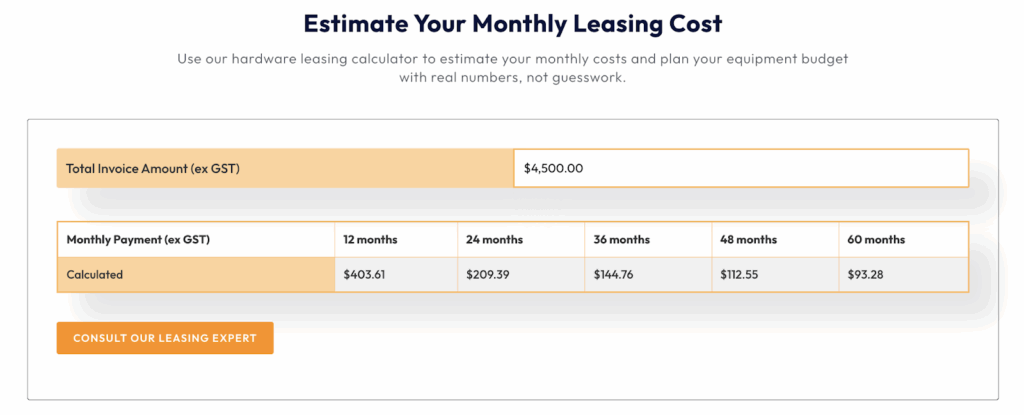
Our Interscale team often sees AEC firms scale hardware smartly without straining budgets. A laptop priced at $4,500 outright can be leased from $380/month, making timing and cash flow easier to manage. This guide unpacks what genuinely matters, what’s often overpriced, and which laptops prove themselves in actual Revit workloads.
Revit System Requirements for 2026
Minimum specs may still run, but real projects tend to expose weak spots quickly. What looks fine on paper can struggle with linked files or large sheets. These are the specs we’d recommend for a smooth Revit experience in 2026.
- CPU: Intel Core Ultra 7/9, i7‑13700H or better, or Ryzen 9 HX
- RAM: 32 GB recommended (64 GB preferred for heavy workflows)
- GPU: NVIDIA RTX 4060 or higher, with 8 GB VRAM minimum
- Storage: 1 TB NVMe SSD (PCIe Gen 4 or Gen 5 preferred)
- Display: 16‑inch WQXGA or 3K OLED with good brightness and colour
- Ports: USB‑C, HDMI 2.1, and fast SD reader (optional but useful)
- Thermals: Dual-fan or vapour chamber cooling to avoid throttling under load
- Power Supply: 200W+ adapter or supported USB-C charging with full wattage delivery
- Refresh Rate: 120 Hz or higher recommended for smoother 3D navigation.
Lease High-Performance Laptops for Revit in Australia
Run Revit smoothly with Interscale’s computer leasing—no upfront cost, predictable monthly plans, ready for 2026 projects.
Key Consideration When Choosing a Laptop for Revit
Selecting the best laptop for Revit involves balancing several key pillars. These factors shape performance, user comfort, and the machine’s long-term viability. Below, we break down what to look for across performance, thermals, portability, and the details most people miss.
Performance
Revit benefits most from high single‑core CPU speeds and robust GPU acceleration. Aim for a current‑generation CPU (e.g., Ryzen AI 9 or Core Ultra 9) paired with RTX 50 series or professional RTX GPUs. A fast NVMe SSD ensures loading large models happens without frustrating lag.
Display
A display with accurate colour and adequate size supports detailed modelling comfortably. OLED or miniLED panels with sRGB/ P3 coverage improve material previews and reduce eye strain. Ensure screen size fits drawing code requirements while keeping portability realistic.
Cooling System
Sustained performance hinges on effective cooling systems with multi‑pipe vapour chambers or dual fans. Without adequate thermal design, laptops throttle under complex Revit sessions. Regular cleaning and smart fan profiles help prolong service life and maintain steady performance.
Portability and Battery Life
Portability matters when moving between site and studio sessions with heavy Revit files. A 16‑inch unit under 2.5 kg balances field flexibility with screen real estate. Battery life is less of a concern during bulk rendering, so it’s a good policy to carry a reliable power adapter.
Future‑proofing
Hardware decisions should consider upcoming Revit versions and plugin growth in complexity. Choose systems with expandable RAM, spare SSD slots, and modern ports like Thunderbolt 5 or USB‑C docks. Upgradability prolongs the useful lifespan and reduces long-term refresh costs.
Budget
For budget consideration, we always suggest identifying the bottleneck that slows your Revit workflow the most, then upgrading that spec first. A balanced approach might pair a mid-range CPU with a strong GPU where needed. Stretching to leasing via Interscale can allow better spec choices without absorbing upfront capital outlay.
Key Revit Features that Require a High-Performance Laptop
Revit Family Creation and Parameter-Driven Modelling
Revit family creation relies heavily on strong single-core CPU performance. Each parameter change forces geometry and constraints to recalculate in real time, which slows iteration on weaker processors. This delay becomes more noticeable when families are nested or reused across templates and projects.
Large Models and Worksharing Performance
Large Revit models introduce constant background activity during daily work. Syncing, ownership checks, and linked model updates place sustained load on the CPU and storage system. When these operations slow down, coordination friction increases across the entire team.
Complex Geometry and Detailed Modelling Tools
Advanced modelling tools raise the computational load during active design. Adaptive components, curtain systems, and dense assemblies reduce viewport responsiveness when hardware cannot keep up. This is where GPU capability and thermal stability begin to matter during modelling, not just rendering.
Rendering and Real-time Visualisation Workflows
Real-time visualisation tools place sustained demand on both the GPU and system cooling. Frame drops appear quickly when power delivery or thermals are insufficient. Stable performance matters most during reviews and coordination sessions that run alongside active modelling.
How These Revit Features Translate Into Hardware Priorities
These Revit features define where performance pressure builds during real projects. CPU speed governs modelling and worksharing, GPU strength supports geometry and visualisation, while RAM, storage, and cooling keep everything stable under load. With these demands in mind, the laptop recommendations below structured around matching hardware capability to actual Revit workflows.
Best Laptop for Revit in 2026
This shortlist comprises models that cater to various usage patterns, while also considering Australian availability and cost. Each recommendation reflects real‑world Revit usage. Scroll on for a best laptop review for your specific Revit workflow needs in 2025 and 2026.
1. Asus ProArt P16
The Asus ProArt P16 suits AEC teams that need Revit to stay fast even with live links and heavy detailing. Its Ryzen AI 9 handles demanding operations without slowing viewport feedback during coordination or documentation. For mixed workflows that include Enscape, 3D markups, or high-res drawing sets, this balance of CPU and GPU tracks well across Australian project types.
The 3K OLED display holds up in review sessions where clarity matters more than brightness specs. With 64 GB of RAM and a 2 TB SSD, this machine provides BIM leads and designers with ample room before reaching upgrade thresholds. At A$ 3,900 to 4,500, it fits setups managed through leasing or staged procurement without pushing too far into workstation territory.
Key specs of Asus ProArt P16
- AMD Ryzen AI 9 HX 370 CPU
- NVIDIA RTX 5070 Laptop GPU
- 64 GB DDR5 RAM, 2 TB Gen 4 NVMe SSD
- 16-inch 3K OLED, 120 Hz (Pantone-validated, 100% DCI-P3 color gamut)
- USB 4.0, HDMI 2.1, SD Express, Wi-Fi 7
- Aluminium chassis, MIL-STD durability, and approx. 1.85kg to 2.1 kg.
2. Lenovo ThinkPad P16 Gen 2
The ThinkPad P16 Gen 2 fits firms with formal IT governance and fixed asset policies. As a laptop with Intel Core i9 HX and RTX 5000, ThinkPad P16 Gen 2 are well-suited for large federated Revit models, AutoCAD drafting, IFC workflows, and real-time clash detection. Teams working in BIM 360 or pushing live model syncs will benefit from its ISV-certified stability.
The 500-nit display offers excellent screen visibility for markup sessions, and its ECC memory option supports heavy rendering and point cloud tasks. With configurations around A$6,000 to 7,200, this machine fits well into capex-funded setups or when aiming for a 3–4 year lifecycle standard.
Key Specs of Lenovo ThinkPad P16 Gen 2
- Intel Core i9-13980HX CPU
- NVIDIA RTX 5000 Ada Generation GPU
- Up to 128 GB DDR5 ECC RAM, 2 TB NVMe SSD
- 16-inch WQUXGA IPS, 500 nits, 100% DCI-P3
- Thunderbolt 4, HDMI 2.1, RJ45, SmartCard
- MIL-STD chassis, 2.95 kg, and ISV certified.
3. MSI Titan 18 HX
The MSI Titan 18 HX is engineered for power users who regularly run Revit with 4K views, parametric families, or real-time plugin overlays like Enscape and Twinmotion. Its Intel Core Ultra 9 285HX and RTX 5090 Laptop GPU (24GB GDDR7)combo enables smooth rendering during stakeholder walkthroughs or high-poly BIM previews. For engineering-led teams dealing with MEP overlays or infrastructure scale, this spec prevents bottlenecks under pressure.
The 18-inch Mini LED display excels in visual validation sessions or QA checks where fine line weights matter. At A$7,400 to 8,200, this model suits principal designers or firms running hybrid workstation‑laptop roles, especially when paired with monthly leasing or software bundling.
Key specs of MSI Titan 18 HX
- Intel Core Ultra 9 285HX or AMD Ryzen 9 9955HX CPU
- RTX 5090 Laptop GPU (24GB GDDR7)
- 96 GB DDR5-6400 RAM, 2 TB NVMe Gen 5 SSD
- 18-inch Mini LED UHD+ (120 Hz, HDR1000)
- Thunderbolt 5, HDMI 2.1, SD Express
- Mechanical keyboard, vapour chamber cooling, and 3.6 kg.
4. Dell Alienware m18
The Dell Alienware m18 is a bold pick for design studios and BIM teams that want workstation-level speed without stepping into ISV-certified territory. Its Intel i9 CPU and RTX 4080 GPU hold up well across large Revit sets, Enscape presentations, and Rhino‑Revit workflows. This is ideal for firms doing concept-to-documentation with a need for responsive 3D views and fast render feedback.
At nearly 4 kg, this model isn’t designed for site mobility, but it excels as a fixed-station replacement for designers who need immersive display space. Australian pricing ranges between A$5,300 and 6,300 depending on spec, making it a strong option for studios balancing raw power with more flexible purchasing cycles.
Key Specs of Dell Alienware m18
- Intel Core i9-14900HX CPU
- NVIDIA RTX 4080 Laptop GPU (12 GB VRAM)
- 64 GB DDR5 RAM, 2 TB PCIe Gen 4 SSD
- 18-inch WQXGA IPS 165 Hz panel (100% DCI-P3)
- Wi-Fi 6E, Thunderbolt 4, HDMI 2.1, SD card slot
- Aluminium chassis, 3.8–4.23 kg.
5. HP ZBook Power G10
The HP ZBook Power G10 targets teams that require ISV certification without inflating project hardware budgets. Its i7 or i9 CPU options and RTX A2000 Ada Generation GPU are well-matched for day-to-day Revit work, detailing, and BIM cloud coordination across mid-size projects. This makes it a consistent performer for documentation teams and junior architects working under shared models.
Its 400-nit display and ZBook-level thermals offer reliability over long sessions, especially for those who frequently use Autodesk tools. Starting from A$3,200 and climbing to A$4,400, it remains a solid procurement fit for managed device fleets or onboarding new project staff.
Key Specs of HP ZBook Power G10
- Intel Core i7-13700H or i9-13900H CPU
- NVIDIA RTX A2000 GPU (8 GB VRAM)
- Up to 64 GB DDR5 RAM, 1 TB Gen 4 SSD
- 15.6-inch FHD or 2560×1440 IPS, 400 nits display
- HDMI, USB-C, RJ45, Wi-Fi 6E
- MIL-STD 810 certified, ISV-validated, and 1.9-2 kg.
Tips for Optimising Laptop for Revit
Revit performs best when your laptop settings, file hygiene, and system habits are aligned to the project scale. Teams running SketchUp alongside Revit can compare needs in our laptop for SketchUp guide. It’s not just about hardware, but how well each part of the machine is maintained, scheduled, and kept lean during daily use. These tips focus on practical gains we’ve seen across Australian AEC teams working with Revit and related software:
- Adjust Revit’s graphics settings based on your GPU and typical project size
- Install GPU drivers directly from the vendor, not via Windows Update
- Use certified drivers for improved stability when working with large or linked files
- Regularly purge unused families and audit your BIM content libraries
- Avoid overloading templates with non‑project assets or legacy annotations
- Clean up duplicates and keep shared parameters consistent across teams
- Use fast NVMe SSDs for active models and system cache
- Keep at least 20–25% of your drive free to avoid render slowdowns
- Enable write caching in Windows for quicker file handling and exports
- Raise the laptop with a cooling stand to improve airflow during rendering
- Clean fans and vents every few months to keep thermals in check
- Repaste CPU and GPU after 18–24 months if performance starts dipping
- Turn off background apps during Revit sessions, especially browser tabs and media players
- Schedule Windows updates and BIM 360 syncs outside of peak hours
- Use Worksharing Monitor or equivalent to track central model usage across collaborators.
Tips for Saving When Buying a Laptop for Revit in Australia
Choosing the right laptop for Revit doesn’t always mean buying the expensive unit on the shelf. At Interscale, we’ve found that thoughtful component planning often outperforms maxed-out specs, especially when device choice is aligned with actual project workflows. For many small to mid-sized firms, cost efficiency starts with knowing which parts drive performance in Revit.
One insight we often share is this: not all upgrades deliver equal impact. Prioritise high-speed storage and a capable GPU first, then assess whether your work requires 64 GB RAM now or later. Many laptops used in AEC workflows allow you to start with 32 GB and upgrade once larger models or libraries become your norm.
Leasing or financing helps ease the upfront strain, but it’s also about control. Through Interscale’s computer leasing options, a laptop worth A$4,500 might only cost A$403/month with 0% lease terms. This matters when your machine also needs to run Enscape, Navisworks, or cloud sync tools across multiple file versions.
Watch for end-of-financial-year deals or vendor bundles that include professional warranties, docking hubs, or software licences. It’s common to find AEC-ready gear discounted through business procurement programs or education-linked purchases. And for site-heavy firms, always weigh in extended accidental coverage, especially for devices travelling between office and construction zones.