 Skip to content

Autodesk Assistant is an AI tool built into Revit, AutoCAD, and several other Autodesk software. It answers model questions and carries out supported tasks from a prompt.
David Gerber, Interscale’s BIM/CAD Technical Consultant, tested it in Revit 2027 on common Revit jobs: renumbering sheets, finding model elements, changing wall types, and building a door schedule. Assistant also explained how to place grids, without placing them itself.
David began most tests during Tech Preview and retested key prompts once that label was removed.
If your team spends time on these jobs, his results show which ones are worth trying with Assistant, and where you’ll still need to step in.
What Is Autodesk Assistant, and Where Did We Test It?
Autodesk Assistant is an AI tool inside Autodesk products, and David tested its model actions in Revit 2027.
Autodesk Assistant can explain Revit features, answer model questions, and carry out supported tasks from a prompt.
David tried sheet and schedule tasks alongside wall type changes and element lookups.
He used a five-wall model, a dummy file and a cloud project. He also tested a project created from an Interscale template.
In AutoCAD 2026, he used Assistant for guidance on jobs such as creating a block. However, he did not test drawing changes or company standards comparisons there.
Because capabilities differ between products and change with updates, these findings apply to the tests described here.
What Can Autodesk Assistant Actually Do in Revit? Our Test Results
Assistant completed sheet tasks and model lookups, changed wall types, and created a door schedule in David’s tests.
But please note that he still had to inspect the result for missed sheets or extra schedules, and check where views landed. So, use the following table to weigh up your options:
| Task David tested | Observed result | What it means for your workflow |
|---|---|---|
| Create, rename, and renumber sheets | Completed quickly; one rename missed a sheet | Check the complete sheet list |
| Place a view on a sheet | Took about 11 seconds and placed it centrally | Manual placement may be faster for one view |
| Find 300 mm walls | Returned IDs, levels, and lengths; IDs selected the correct walls | Useful for model lookups |
| Change wall types | Proposed changes for five wall IDs. But, in the pictured test, four were updated and one was already the target 200 mm type | Review the target elements and resulting documentation |
| Build a door schedule | Created a starting point; follow-up requests left extra schedules | Revit knowledge and clean-up were needed |
| Place grids | Explained methods without placing grids | Provided guidance in this test |
Where Did Autodesk Assistant Save Time?
The Assistant saved David time on sheet changes and wall lookups, and helped him start a door schedule. Those jobs gave him something he could check straight away in Revit.
Renumbering and Managing Sheets
Assistant renumbered David’s scrambled sheet set in about five seconds, after he asked for the sheets to follow the A100 series in a set order.
“That’s faster than my own Dynamo script, which was really a workaround for a tedious manual job, and now AI is simplifying those tasks,” said David.
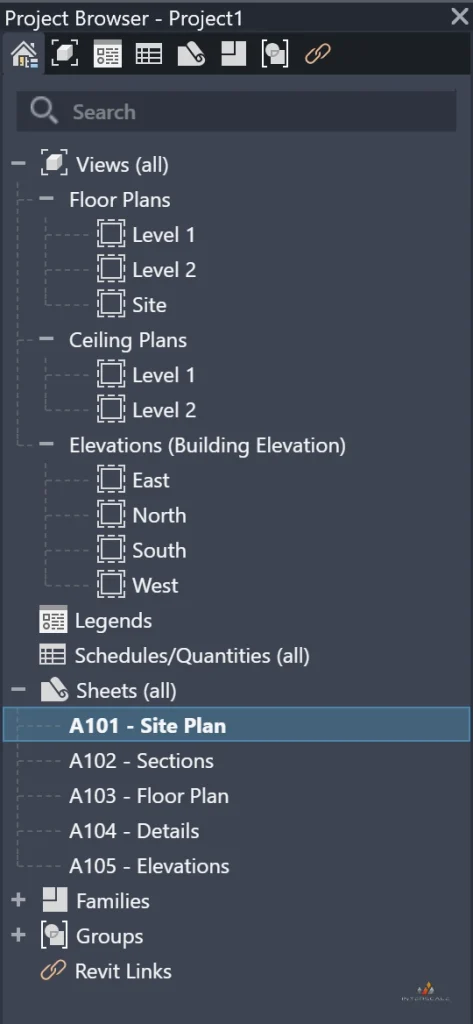

It also matched an existing view position. David moved one view into a corner and asked for two more sheets with views “in the same location.” Assistant placed them in the matching position.
Finding Elements Without Building a Schedule
Assistant found the 300 mm walls and returned IDs David could use to select them in Revit. The lookup took 14 seconds and included levels and wall lengths.
He checked the answer by pasting the IDs into Revit’s element ID search, which selected the correct walls. That saved him searching through the model or building a filtered schedule for the lookup.

Starting Repetitive Documentation Tasks
The Autodesk Assistant saved time by creating an initial door schedule that David could then review, but further requests left extra schedules to clean up.
“My Door Schedule test left me with three Schedules… You need some experience in how Schedules work in Revit to steer it and clean it up,” said David.
You’ll need enough Revit knowledge to check the schedule and recognise when a follow-up prompt has created another copy.
Where Did It Struggle or Need a Human Decision?
Autodesk Assistant struggled or needed David to step in when a task depended on precise prompt wording, existing model content, or Revit judgement.
Bulk changes also needed checking, because a completed command did not always mean every intended change had been made.
In practice, getting a usable result depended on how precisely David framed the request, what already existed in the model, and how carefully he checked the work afterwards:
- Prompt wording could change the result: “Add the field to this schedule” failed, while “Create the same type of schedule and add the field” worked. Follow-up requests also left David with three schedules, including extras created after grouping, sorting, and field changes.
- It sometimes needed exact information from the model: The wall change stalled until David named the existing Wall-Ret_200Con type. Assistant then showed the five wall IDs and proposed change before he confirmed it. On a live project, David would also check materials, tags, annotations, and dimensions that could be affected.
- Bulk changes still needed checking: When David asked the Assistant to make all sheet names fully uppercase, it missed one sheet. He spotted it in the Project Browser, although he would use a Sheet List Schedule to check a larger set.
- Some tasks remained guidance rather than automation: Assistant explained three ways to place grids but did not place them. When David asked whether a mixed-use building in Melbourne would meet building code requirements, Assistant referred the decision to a Victorian building surveyor and offered to help prepare model information instead.
Is Autodesk Assistant Faster Than Working Directly in Revit?
Assistant was faster for some sheet tasks and lookups, but direct Revit work or Dynamo was quicker on others.
David could place a single view faster by hand than the 11 seconds Assistant took. His Dynamo bulk rename also finished in 0.12 seconds, compared with two seconds for Assistant.
Use these timings as examples from David’s tests. For your own comparison, count the time spent writing prompts and checking or correcting the result.
How Should an AEC Team Test Autodesk Assistant Safely?
David recommends sheet creation, renumbering, or an element ID lookup as a first trial.
“For heavy changes, I’d always use a saved copy, test the result, then replicate, because you don’t know what else a change might touch (Tags, Dimensions, Annotations),” he said.
That’s why, for each trial, consider naming what you want Assistant to do and checking what it returns:
- Choose one action: Name the relevant sheets, elements, or existing types in your prompt.
- Review the proposed change: When Assistant asks for confirmation, check the target elements, their current types, and the proposed change before accepting.
- Inspect the result in Revit: Check what changed, what was skipped, and whether the result matches your request. For larger sheet sets, use a Sheet List Schedule to catch missed entries.
- Try substantial edits on a saved copy: Check any affected documentation before repeating the change in your working model.
- Know how to reverse the action: David reversed the tested wall change with Revit’s Undo. Redo also worked.


Also, always start a new chat when the task changes. And keep prompts that worked so you can reuse them on another project.
Our Verdict: Who Will Find It Useful Today?
Autodesk Assistant appears most useful to Revit users who regularly manage sheets or look up model information.
If you already know the Revit workflow, you can steer the prompt and check the result. Beginners may find its explanations helpful, although schedule errors and unintended model changes can be harder to spot.
David wants the Assistant to place grids and edit schedules cleanly. He also wants it to catch missed sheets in bulk changes and remember context across chats or projects.


