 Skip to content

Single sign-on (SSO) lets your team use one work identity to reach multiple approved applications without entering a separate password at every stop.
For an AEC firm, that can reduce daily friction across Microsoft 365 and Autodesk services. The same applies to BIM collaboration platforms and other project tools.
The attraction is easy to see. Architects, engineers and site teams move between email, models and mobile applications throughout the day.
The concern is equally reasonable: if one identity opens several systems, that identity becomes more important to protect.
The question is therefore whether SSO gives your firm a better-managed access path across its real software stack.
To answer it, we need to understand what SSO controls, how the login flow works and which security and project-access controls still sit outside it.
What is single sign-on (SSO)?
Single sign-on is an authentication method that lets a user sign in once through a trusted identity system and then access multiple connected applications without signing in again each time.
The applications trust the identity system’s confirmation rather than collecting and checking the user’s work password themselves.
In SSO, there are three parties usually take part:
- The user requests access to an application.
- The identity provider (IdP) authenticates the user and applies sign-in policies. Microsoft Entra ID is a common workplace example.
- The service provider (SP) is the application the user wants to open, such as a document platform or Autodesk service.
This relationship is called federated identity when separate organisations or systems agree to trust identity information from a recognised provider.
The trust is technical and controlled. The IdP sends a signed assertion or token that confirms who the user is, while the service provider decides what that identity may access.
That final distinction matters. SSO handles user authentication, but it does not automatically grant a Revit licence, add someone to an Autodesk project or give them access to a restricted SharePoint site.
Those authorisation decisions still depend on application roles, group membership, licences and project permissions.
For this reason, the Active Directory remains relevant when your firm keeps identities on-premises and synchronises them to a cloud identity provider such as Microsoft Entra ID. In a cloud-first firm, Entra ID may instead become the main identity directory and policy point.
How Does SSO Work?
SSO works by letting a trusted identity provider authenticate the user and send a time-limited identity assertion or token to the requested application.
The application validates that response, applies its own permissions and creates a session without receiving the user’s password.
A sign-in can begin from the application or an identity-provider portal. The application-initiated route makes the moving parts easiest to understand, so the steps below follow that flow.
The SSO Login Flow, Step by Step
The SSO login flow should establish identity, apply access policy and issue only the information the application needs, which usually has these five steps:
- The user opens an application: A project manager selects an ACC link, for example, and the service checks whether a valid session already exists.
- The application redirects the user to the IdP: The request identifies the application and the location to which the user should return.
- The IdP authenticates the user: It may check a password, passkey or other credential, then require MFA or assess conditions such as device compliance and sign-in risk.
- The IdP returns a signed assertion or token: This confirms the user’s identity and may include approved claims such as email address or group information.
- The application creates its own session: It validates the assertion or token, maps the identity to an account and applies its own permissions.
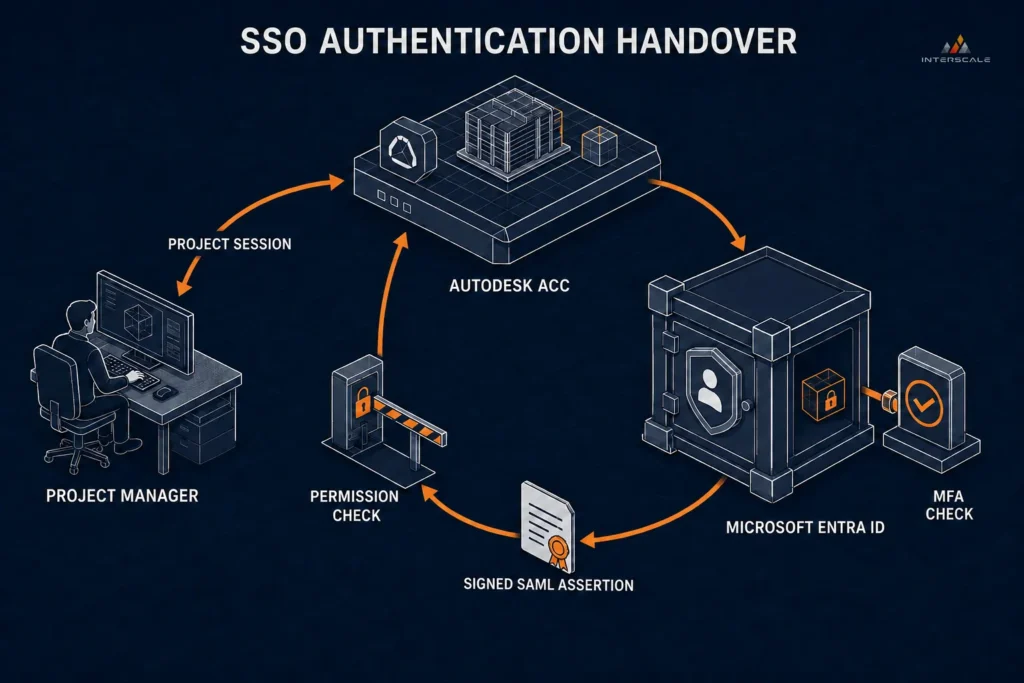
Microsoft Entra ID verifies the user and returns a signed SAML assertion, while ACC still applies its own permission check before opening the project session.
SSO protocols: SAML, OAuth 2.0 & OpenID Connect
SSO protocols determine how your identity provider and each application exchange identity or access information. SAML and OpenID Connect support authentication, while OAuth 2.0 delegates access to a resource.
The right option depends first on what each application in your stack supports.
| Standard | Primary job | Typical fit | What an IT manager should remember |
| SAML 2.0 | Exchanges signed identity assertions | Established enterprise web applications and SaaS | Common for workforce federation, including Autodesk SSO |
| OAuth 2.0 | Grants limited access to an API or resource | Integrations that act on a user’s behalf | It is an authorisation framework, not user authentication by itself |
| OpenID Connect (OIDC) | Adds an identity layer to OAuth 2.0 | Modern web, mobile and cloud applications | Uses ID tokens to support sign-in and SSO |
The table above is a fit check rather than a menu of interchangeable options.
Start with what each service provider supports, then confirm the IdP configuration, required identity claims and logout behaviour.
Review applications individually because one AEC stack may use several protocols alongside tools that do not support federation.
Types of Single Sign-on
Single sign-on can be divided into four common types based on how users and applications connect to an identity provider: federated SSO, integrated enterprise SSO, password-based SSO and social login.
Federated SSO allows separate applications or organisations to trust the same identity provider, usually through SAML or OpenID Connect. An employee might use their Microsoft work identity to access an Autodesk service.
Integrated enterprise SSO reuses an existing corporate directory or device session. For example, an employee signs in to a managed Windows device and can open approved internal applications without signing in again.
Password-based SSO stores and submits an application’s existing username and password for the user. It is commonly used when an older application does not support SAML or OpenID Connect.
Social login lets users access an application through an existing external identity, such as a Google or Microsoft account.
Benefits of SSO
The main benefit of SSO is simpler access backed by a central identity policy that IT can manage consistently, which can be break down into:
- Less password friction: Staff sign in fewer times and manage fewer separate work passwords across connected tools.
- Central policy enforcement: The IdP can apply MFA, sign-in risk, location or device conditions before it issues a token or assertion.
- Faster access changes: IT can disable a central work identity and use provisioning processes to remove connected accounts, although application permissions still need verification.
- Better sign-in visibility: Central logs give IT a more coherent view of successful, failed and unusual authentication events.
- Fewer passwords presented to services: With federation, connected applications receive trusted identity information rather than the user’s main work password.
Those benefits can improve both the user experience and administrative control when the connected applications support modern federation.
For example, a new engineer may receive a Microsoft 365 identity on their first day, complete MFA registration and then use that identity for approved Autodesk services.
The onboarding path is easier to follow because the authentication point is consistent, while licences and project memberships remain deliberate assignments.
The same model can make offboarding more reliable. Your team still needs to remove project roles, recover shared information and check external accounts, but disabling the central identity closes a major access path quickly.
Risks & Limitations of SSO (and Why It Needs MFA)
The risk and limitation of SSO is to concentrate access around one identity, so MFA is needed to reduce the chance that a stolen password can unlock several connected applications.
The main risks and limitations of SSO that concentrate access around one identity include:
- Compromised identity: An attacker executing common cybersecurity threats who gains control of the central account may reach several connected services.
- Stolen session token: An attacker may reuse an active token without triggering another password prompt.
- Identity-provider outage: If the identity provider becomes unavailable, users may temporarily lose access to connected applications.
- Incomplete access control: SSO confirms who the user is, but it does not automatically manage licences, project permissions or application roles.
- Limited coverage: Legacy tools and some external-user accounts may remain outside the SSO environment.
These risks make the central sign-in the most important point to protect.
Your multi-factor authentication (MFA) policy should require another form of proof before the identity provider creates a trusted session.
SSO then carries that verified session across connected applications without asking for the user’s password again.
As we all know from comparing MFA vs 2FA, the MFA requires two or more proofs of identity. This makes a stolen password less useful on its own, although your firm should still monitor active sessions and unusual sign-ins.
For firms using Microsoft Entra ID, MFA for Microsoft 365 is the realistic next step for protecting the identity behind SSO.
It can combine additional authentication with access conditions based on factors such as the user, device or sign-in context.
MFA strengthens authentication, but it does not fix identity-provider outages, permission errors or incomplete offboarding.
Those limitations still require emergency access, application-specific reviews and reliable user-removal processes.

In this example, Entra ID and MFA block the compromised sign-in, but a valid session must still pass licence, role and project-permission checks before reaching connected applications.
SSO for AEC firms: BIM, ACC & Microsoft 365 access
SSO can give an AEC firm one company-controlled sign-in across Microsoft 365 and Autodesk services, including accounts used for ACC and BIM 360.
It simplifies authentication across offices, while software licences, project memberships and file permissions remain separate controls.
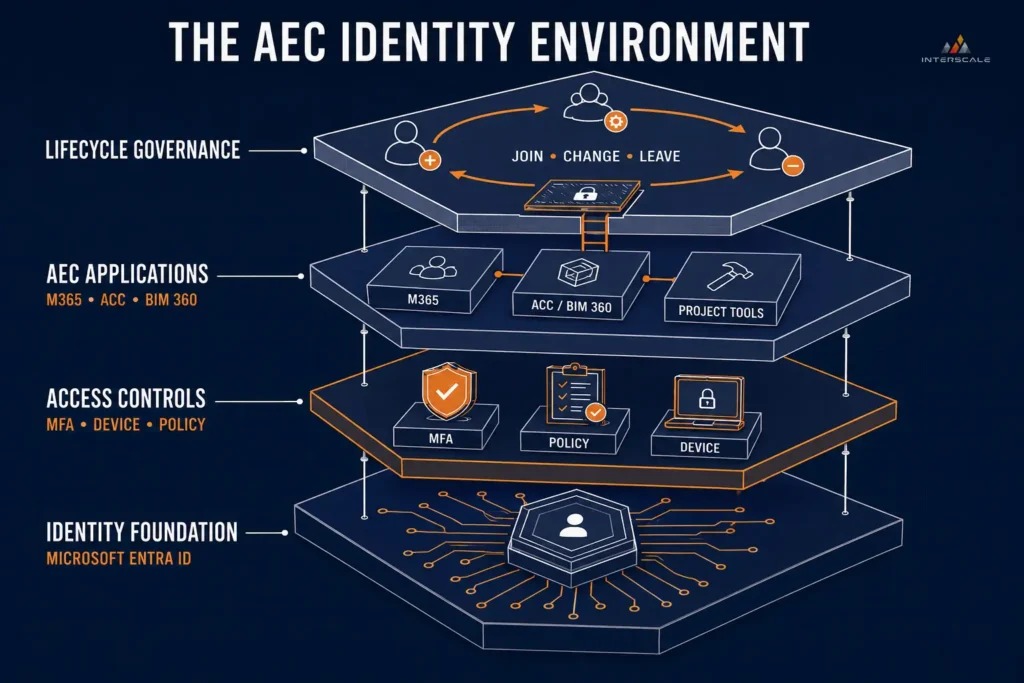
SSO provides the identity foundation, while access controls, application permissions and join, change and leave governance still require their own configuration.
Microsoft 365 Access Through Entra ID
Microsoft 365 security becomes the control layer around SSO when Microsoft Entra ID acts as your identity provider.
Your firm can use the same work identity across services such as Outlook, Teams and SharePoint while applying Azure multi-factor authentication and access policies centrally.
SSO confirms the user’s identity, but it does not decide what that person can access.
Microsoft 365 licences, Teams membership and SharePoint permissions must still be assigned and reviewed separately.
ACC and BIM 360 Access Through Autodesk SSO
Autodesk supports domain-level SAML SSO across its products and services, so company accounts used for Autodesk Construction Cloud and BIM 360 can follow the corporate sign-in process.
However, your firm must first verify its email domain and connect Autodesk to the chosen identity provider.
Test the connection with a small user group before enabling it more widely.
SSO changes how users authenticate, while Autodesk entitlements, hub membership, project access and folder permissions remain under their existing administrative controls.
Devices, Field Teams and External Collaborators
Your enterprise mobility management controls support SSO when architects, engineers and site teams access project services from laptops, tablets and phones.
Device-based policies can help your firm distinguish a managed work device from an unknown endpoint before granting access.
For this reason, your review of vendor cyber risks in AEC should also cover consultants, subcontractors and joint-venture partners who use external accounts.
Define who owns each identity, how long access should remain active and who is responsible for removing it when the project or engagement ends.
What to Check Before Rolling Out SSO
Before changing the sign-in process, map the systems and identities that SSO will affect:
- Confirm which company domains and identity providers are in scope.
- Check whether each application supports SAML, OpenID Connect or another compatible method.
- Define the MFA and device requirements for office, remote and site access.
- Record who manages Microsoft licences, Autodesk entitlements and project permissions.
- Decide how guest, consultant and joint-venture identities will be approved and removed.
- Document emergency access, user offboarding and applications that cannot use SSO.
When to Get Help With an SSO Rollout
Rolling out SSO becomes harder when Microsoft 365, Autodesk services, several offices and external project teams depend on the same identity environment.
As you might expect, your IT team must keep access working while changing how people sign in.
If account ownership, application permissions and recovery paths are not mapped first, staff can be locked out while unsupported tools or outdated access are missed.
A problem in the central identity layer can then disrupt several connected services.
As an Australia AEC technology solution, Interscale can help you turn the change into a controlled security project.
Interscale’s Microsoft 365 security services can help you assess the identities, access points and security policies around your SSO environment.
Your team can then prioritise MFA, privileged access, recovery and offboarding before testing the rollout with a limited user group.
If site teams and remote staff also connect through laptops, tablets or phones, our structured enterprise mobility management can extend those controls to the devices requesting access.
Book a free discussion with the Interscale team to review your SSO environment and plan the controls your rollout needs.


